Income and Expenses
Contracts are typically associated with payments. Either you receive money when you provide the service specified in the contract, or you have to pay for a defined service in the contract.
A contract can also be independent of payments, in which case the contract is not considered in the evaluation of income and expenses.
The role you assume in the contract determines whether the payment associated with the contract is considered an expense or income.
- Customer: If the role is set to Customer, it means that you are the customer and need to pay for the contract service.
- Supplier: If the role is set to Supplier, it means that you provide the service and will be paid for it.
The role is already indicated when adding a new contract. You can change the role in the contract details. Click on a contract in the contract list to view the details.
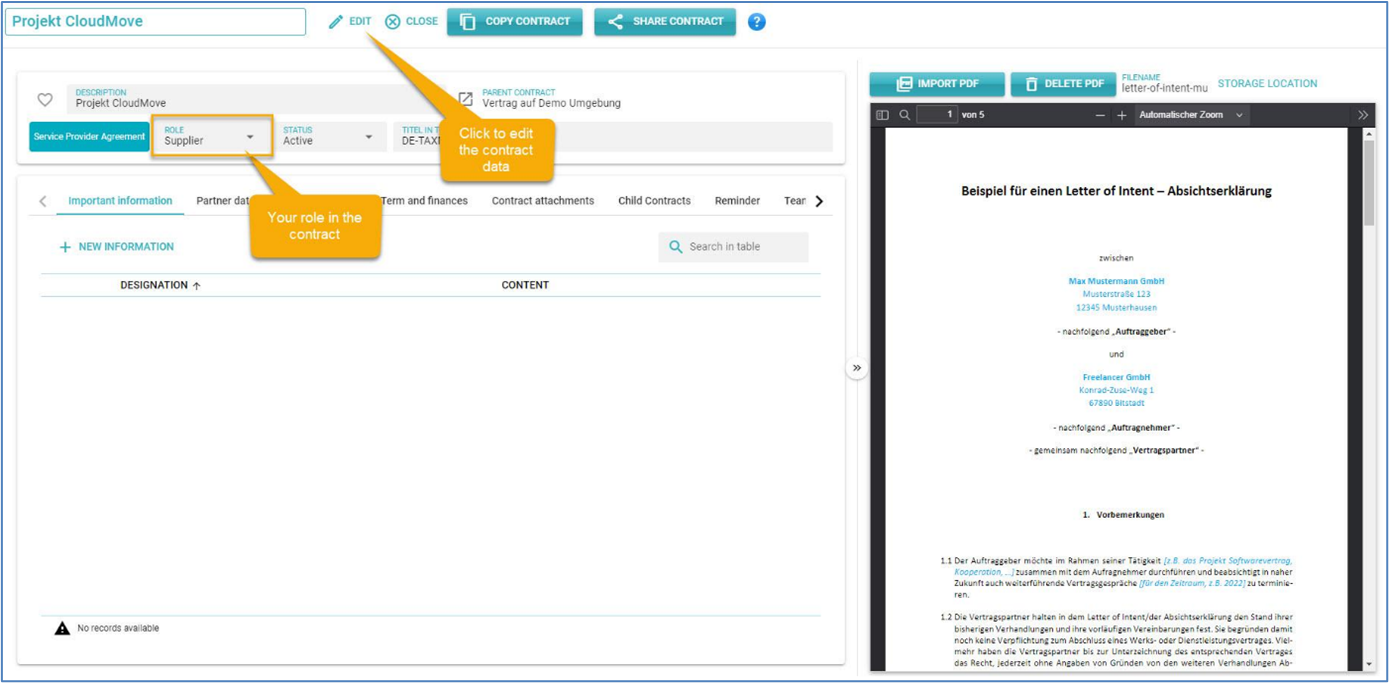
For the contract to be considered in the calculation of income and expenses, the following conditions must be met:
- The contract is in an active status.
- The role is either Customer or Supplier
- In the “Term and finances” tab, the “Financial data” section has one of the following payment frequencies set:
- Contract Start
- Monthly
- Yearly
- Fixed Date
- In the “Term and finance” tab, the “Financial data” section has the contract value and currency set.
To enter the financial data, open a contract in the detail view and click on Edit first and make sure the contract is active, and the correct role is set.
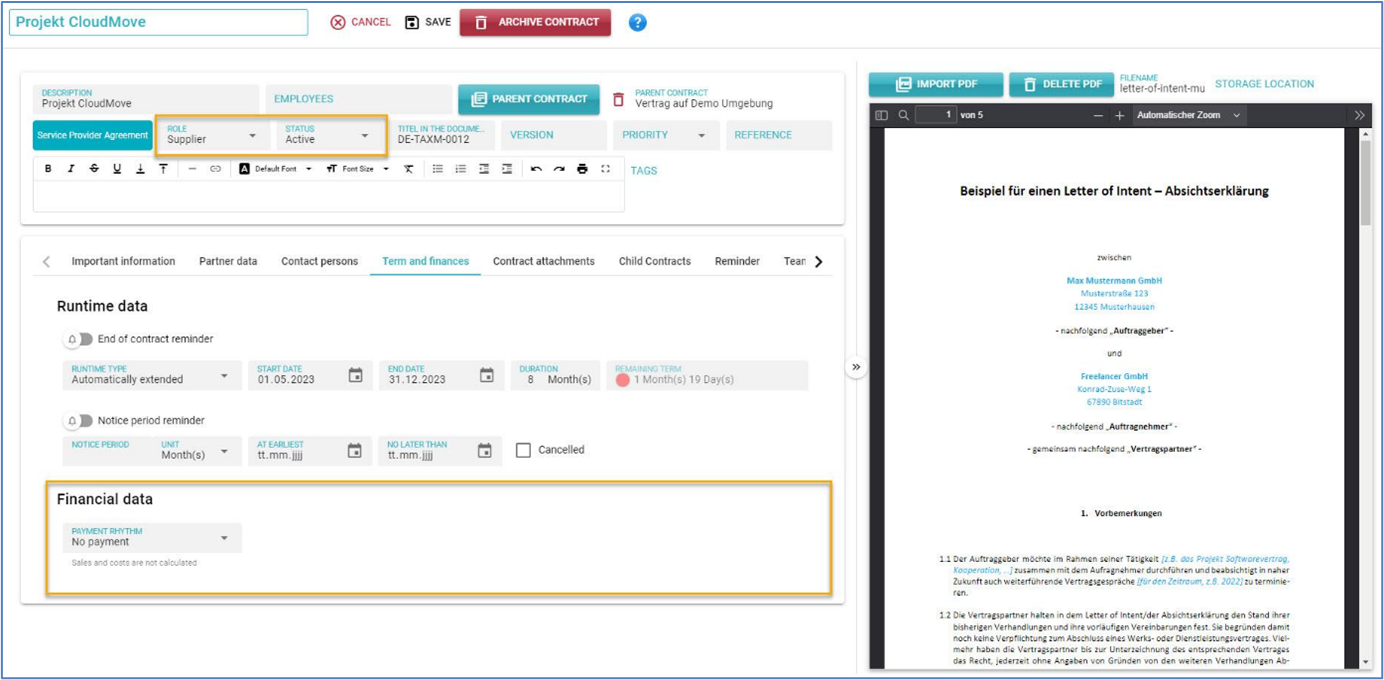
In the Financial data section, select the payment frequency. The following entries are available:
- No Payment: The contract is not associated with any payments and will not be considered in the evaluation of income and expenses.
- Contract Start: A one-time payment is due at the start of the contract. The Start Date field must be filled.
- Monthly: Monthly payments are due. Payments are always made on the day of the month specified in the Start Date field.
- Yearly: Payments are due once every annum. Payments are always made in the same month and on the day specified in the Start Date field.
- Fixed Date: Payments are due annually on a specific date indicated in the Date field.
- Series of Date: With the Date Series feature, independent payment dates can be added, each of which requires a specific amount to be paid.
If you have a contract where payments do not have a fixed date - for example, contracts that involve payment based on performance or delivery - we recommend selecting the “Fixed Date” payment frequency and estimating a date. You can set up a custom contract reminder to check the date.
Now enter the value of the contract per payment in the “CONTRACT VALUE” field. You must also specify the contract currency. You can select it from the list of currencies, which is recorded in official currency codes.
If the contract has a different currency than the currency of your contractSILO account, values for income and expenses will be converted to the account currency. Exchange rates for all currencies are updated daily. In the various views, all values are displayed in the account currency.
You can also specify a payment method, but this will only serve informational purposes.
Save the contract. You may need to include other data, such as the start and end dates of the contract before you can save it. Then exit the contract detail view and switch to the contract list.

In the Contract List, you will see the Contract Value in the account currency per payment frequency in the Contract Value column.
Now switch to the Dashboard view. There, you will see the income and expenses in the Income and Expenses section from active contracts.
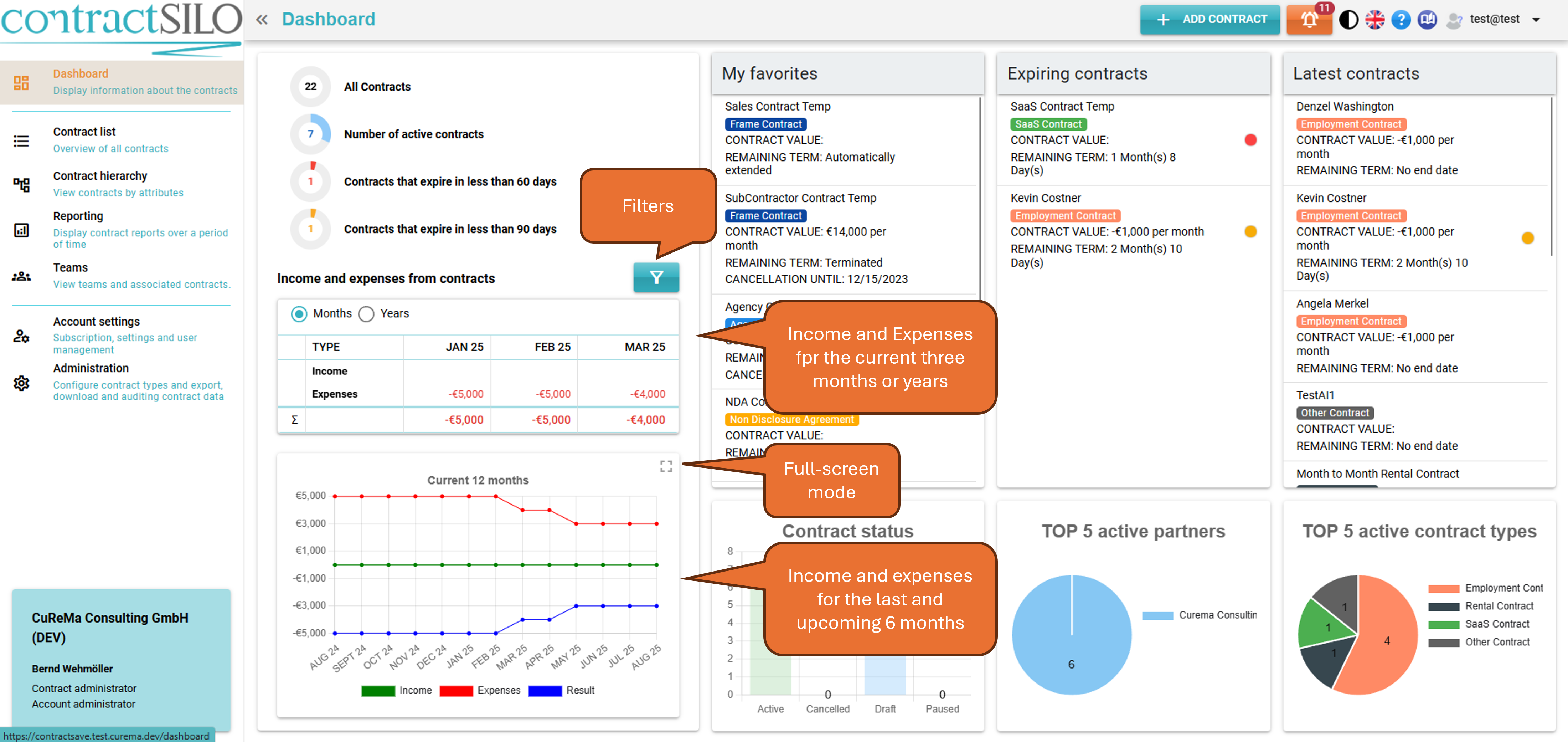
The small table will show the income and expenses for the current 3 months or years. Click on “Years” to view the values according to the years. To filter values, click the filters icon and select the criteria from the drop-down menus.
The chart displays the income and expenses for 13 months. It shows the current month and the past and future 6 months. You can enlarge this chart by clicking on the symbol on the top right corner.
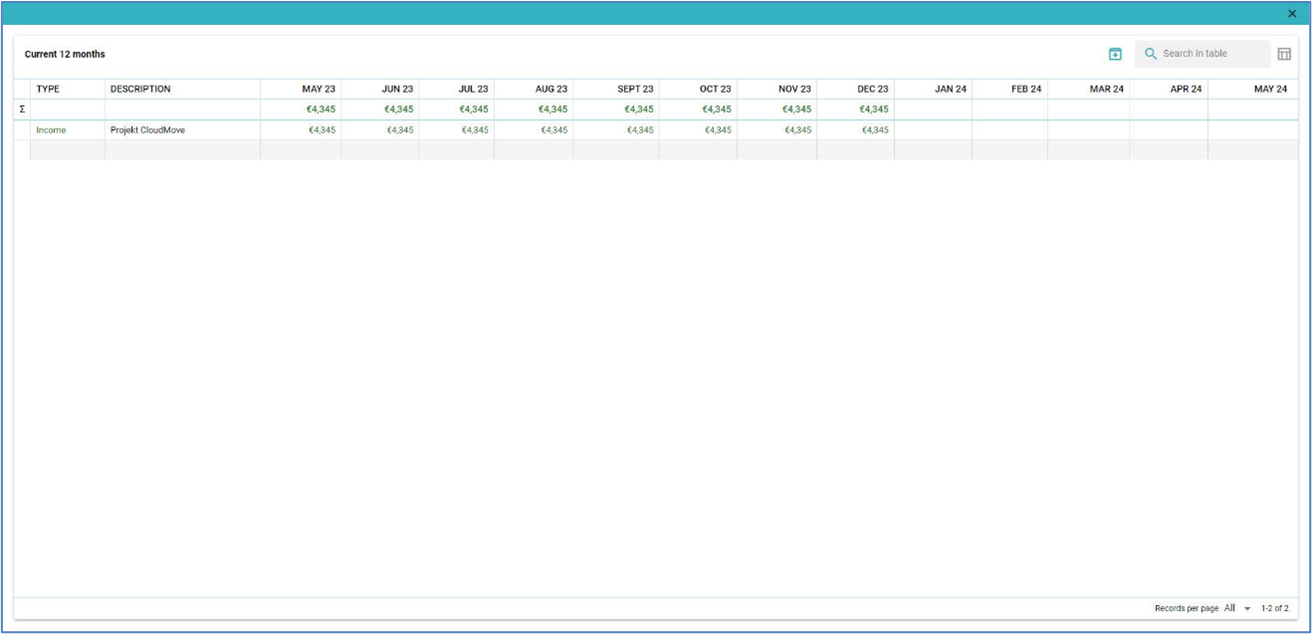
To display a table with the data, click on the small symbol at the top right corner.

This data table can be downloaded as an Excel file.
Summary
contractSILO can automatically present your contract values as income and expenses for specific periods. It takes foreign currencies into account, and exchange rates are updated daily. With contractSILO, you do not only keep track of your contracts and their durations but also the costs and revenues resulting from them.