Contract hierarchy
In this view, contracts are displayed in a hierarchy based on different attributes. The details of a contract can also be viewed.

The view is divided into two sections. The left section displays a hierarchy with the contracts, and the right section opens the contract document. To open the detail view of the currently selected contract, you can use the "Details" button. Additionally, if available, the URL to the original contract is displayed and can be used to open a new window or tab and navigate to the specified URL.
Selecting Contracts
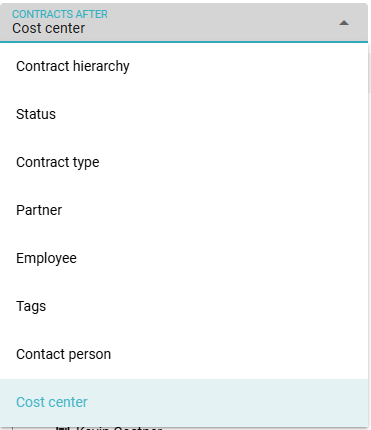
Contracts can be displayed in this view based on various criteria. Click on the CONTRACTS AFTER field and select a criterion from the list. The contracts will then be reloaded and displayed accordingly.
- Contract Hierarchy: Displays the hierarchy of contracts. If a contract is not sorted into a hierarchy (i.e., has no parent), it is displayed at the top level.
- Status: Displays the different statuses at the top level, and the individual contracts under each status.
- Contract Type: Displays the different contract types at the top level. The respective contracts are shown below.
- Partner: Displays the partners at the top level, and the contracts with the corresponding partner below.
- Employee: Displays the employees at the top level and the contracts for that employee below. Only shows contracts where the "Employee" field is filled.
- Tags: Displays the tags at the top level and all contracts with the corresponding tag below. Tags can be added or removed in the detail view of a contract.
- Contact Partner: Display contracts based on Contact Partner. Contracts are listed under the related Contact Partner. Contact Partner information can be entered from the Partner Data section in the detailed contract view, located at the bottom of the page.
- Cost Center: Show contracts based on assigned Cost Centers. Contracts are listed under the relevant Cost Center.
You can click the buttons next to the selection to expand or collapse all nodes. Use the search bar to search for contracts where the entered word appears in the description.
Click on a contract in the list to view the contract document or open the details of the contract.
Tip: Use tags to further group contracts. For example, you can tag all insurance contracts with the tag insurance and then display the contracts based on the tag in this view.