User Interface
This section will contain key elements of the user interface at contractSILO.
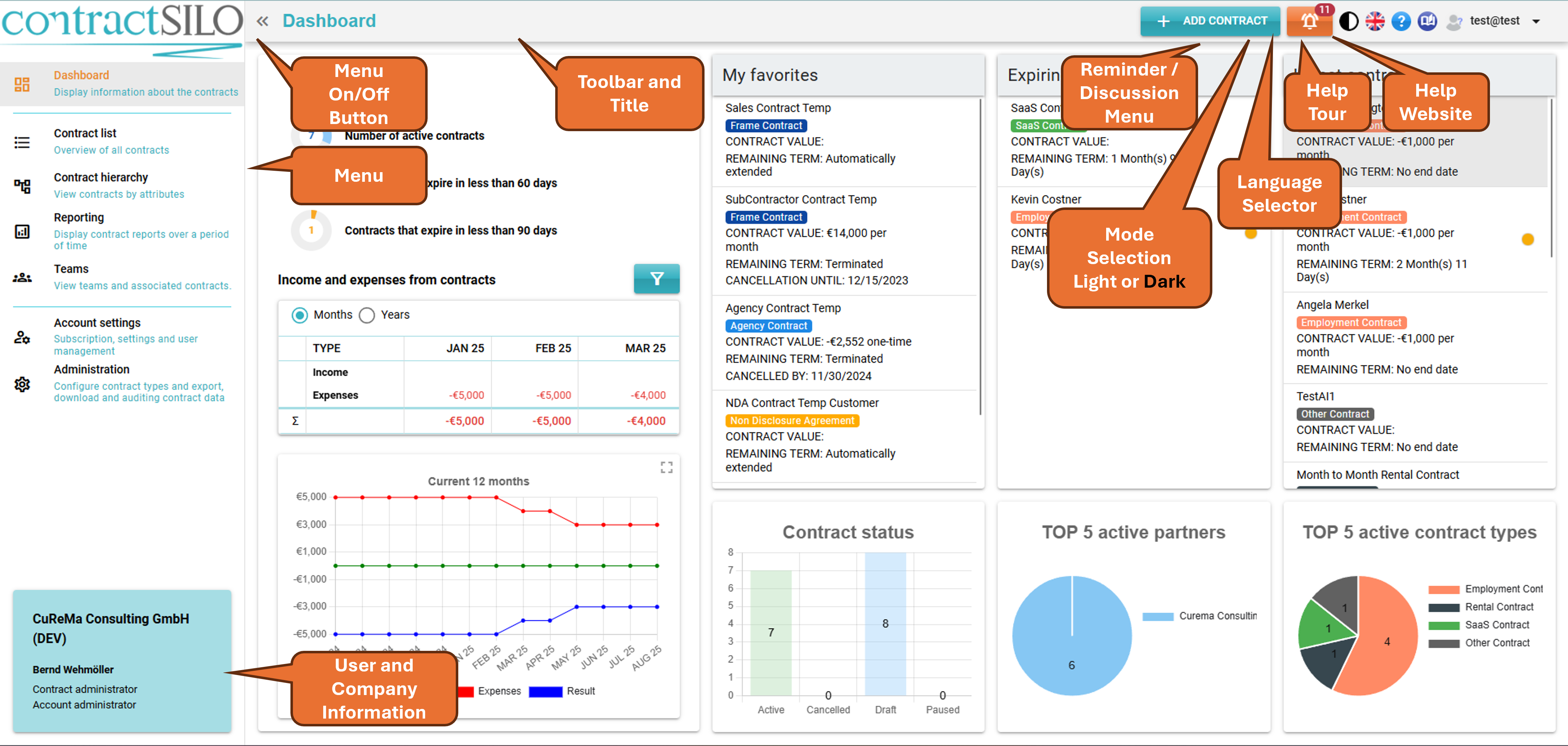
Menu
The Menu on the left lets you access different pages by clicking an item. To minimise the menu for more screen space, click the button on the top right corner next to the menu. Please note that Administration, Reporting, and Teams features are not available in the Free version.
Titel
In the toolbar, the first element displayed is the name of the current view.
Add Contract
In any view, click on the “ADD CONTRACT” button to add a contract. This action will open the Contract List view and display the pop-up window for adding a new contract.
Reminders
This icon indicates whether there are any Reminders active for contracts. Reminders will notify you of expiring contracts, changes to existing contracts, and new discussion contributions related to contracts.
Display Mode
There are two display modes available in contractSILO: light mode and dark mode. You can switch between the two modes by clicking on the relevant button in the title bar.
Language
contractSILO is available in both German and English. Click on the corresponding country flag to select the language.
Online-Help
Click on the question mark in the title bar to access the contractSILO help system. The help system offers guidance relevant to the current page and describes the main components of the view.
From the help's start window, you can also directly access the corresponding entry in this documentation.
Documentation
Upon selecting the documentation icon to access contractSILO's online help resources, the homepage will be presented.
Current User
On the far right of the toolbar, the profile picture and login details of the current user are displayed. You can click on the entry to log out or access your Profile page.