Contract List
In this view, all contracts accessible to you are displayed. You can search and filter the list using various criteria. When a contract is clicked in the table, the details of the contract are shown.
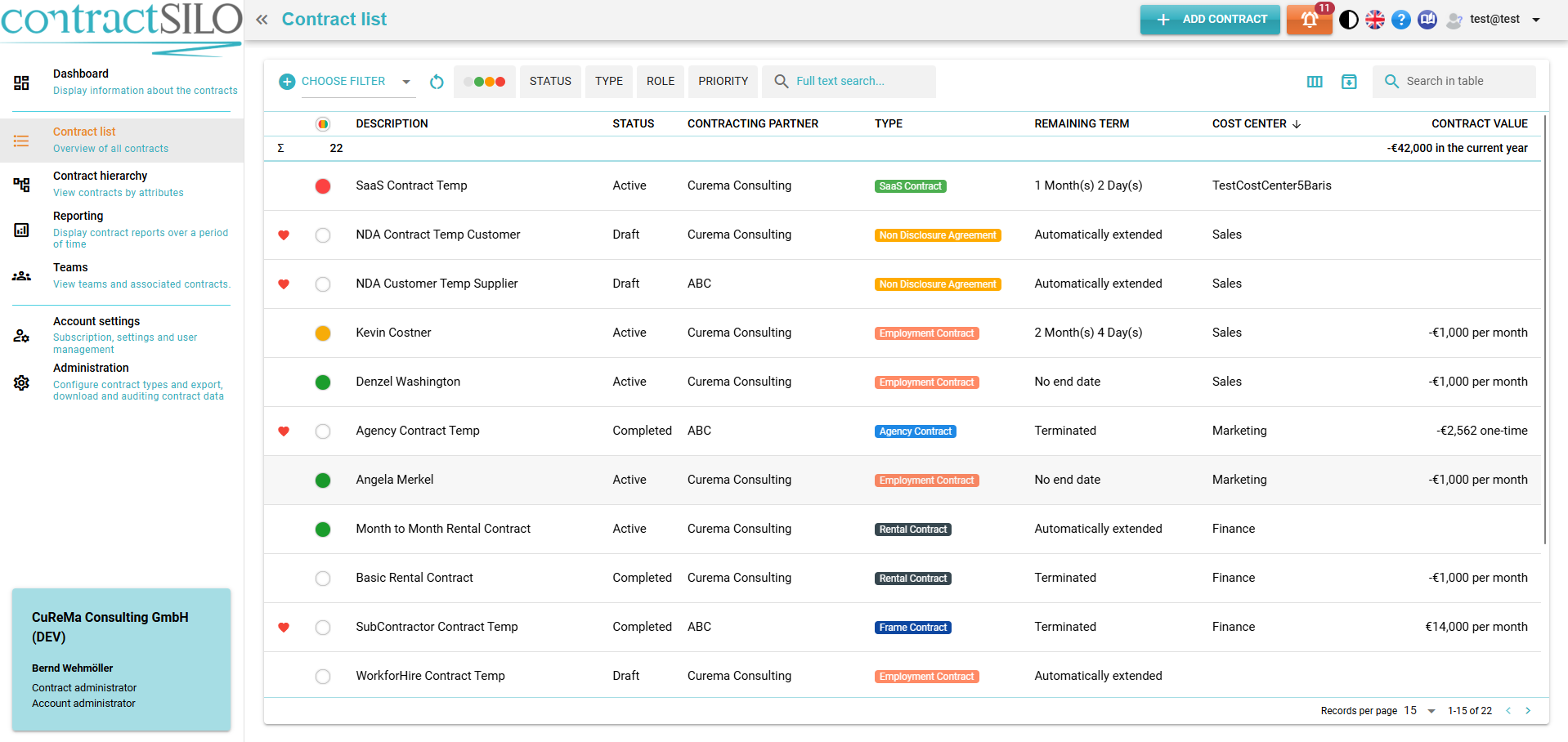
The view is divided into two sections: the upper section for searching and filtering contracts, and the lower section displaying a table of contracts.
Table
The table lists contracts and allows selection in the columns, which can be moved. Table columns are selectable from the "Arrange Column" menu.
- Favourite: Displays a marker (a red heart) if the contract is marked as a personal favourite by the user.
- Cost Centre: Users can group contracts by Cost Centre, which they create and relate to the company's financial operations. Contracts can be filtered and listed by cost centres, allowing companies to better track expenses by department.
- Cancelled: Indicates if the contract is marked as “Cancelled”
- Expiring Contracts: Visualizes whether a contract is expiring soon.
- Red Circle: The contract will expire within the next 60 days.
- Yellow Circle: The contract will expire within the next 90 days.
- Green Circle: The contract will expire more than 90 days from now.
- Empty Circle: The contract is not in the "Active" status or does not have an end date.
- Description: A brief description of the contract, intended to clarify its purpose. Used for contract identification in various views.
- Status: The status of the contract.
- Type: Indicates the contract type.
- Employees: Displays the associated employee.
- Role: Indicates your role in the contract. There are roles like Customer and Provider. In general, if you take on the role of a Customer, you are required to pay for a service resulting from the contract, while as a Supplier, you deliver a service and receive payment.
- Contracting Partner: The name of the contract partner for this contract.
- Priority: Indicates the priority of the contract if one is assigned.
- Reference: A reference (number) can be assigned to a contract, and if set, it is displayed here.
- Designation in the document: The official label of the contract, usually a contract number.
- Start Date: The start date of the contract, when the contract becomes effective.
- End Date: The end date of the contract, when the contract expires.
- Remaining Time: The calculated remaining time of the contract based on the end date. If no end date is set, nothing is displayed here.
- Payment Term: Displays contract payment terms.
- Notice Period: Shows the notice period of the reminder.
- Contract Value: The value of the contract.
- Version: The contract version as assigned in the contract details.
- Tags: The tags assigned to the contract.
This view is useful for drawing attention to contracts that are expiring soon. Please pay attention to the first column in the table.
Filtering and Searching
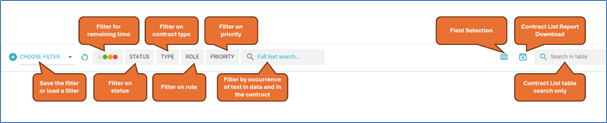
To search for contracts and filter the displayed contracts, you can select various criteria. When a filter is applied, a blue icon is displayed at the top right corner of the applied filter.
Personal (Custom) Filters
After setting various filter conditions, the settings can be saved as a personal filter. A personal filter is only visible to the user who created it. To save a personal filter, simply enter a name for the filter and then click the save icon. Similarly, an existing filter can be updated or deleted.
To select an existing filter, click on the field for the private filter and then select the desired filter from the list.
Saved filters are only visible to the user who created them.
Reset Filters
Clicking the "Reset Filters" button removes all set filters and displays all contracts visible to the user.
Expiring Contracts Filter (colour indicator)
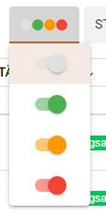
Here, contracts can be narrowed down based on their end dates.
- White Circle: Show or hide contracts without an end date.
- Green Circle: Show or hide contracts with an end date more than 90 days from now.
- Yellow Circle: Show or hide contracts with an end date within the next 90 days.
- Red Circle: Show or hide contracts with an end date within the next 60 days.
- If a filter is selected, only the selected colours are shown in the filter symbol.
Status
Contracts can be narrowed down based on their status. Select a status to show or hide contracts with the selected status.
Priority
Contracts can be narrowed down based on their priority. Select a priority to show or hide contracts with the corresponding priority. Priority can be assigned but is not mandatory, so there is an option to show or hide contracts where the priority is not set.
Contract Type
You can select the contract types to be displayed in the table.
Search by Text
You can search for texts in the contract fields. If a contract is imported as a PDF document, it is indexed and can also be searched.
- Use the asterisk symbol (*) at the end of a word to search for variations of the word.
- The plus symbol (+) before a word means the word must be present.
- The minus symbol (-) before a word means the word must not be present.
- Words in quotation marks are searched as a whole text.
On this external page, you can see all the options for entering search criteria.
PDF documents are analysed upon uploading, and you can search for texts within the document.
However, the search is not always 100% accurate as the quality of the analysis depends on the document. Only words (no numbers or special characters) longer than 3 characters are stored. It is not uncommon for a word to be incorrectly recognized, for example, if there is a line break in the middle of a word or if the spacing between two letters is too large in the PDF document. Therefore, it is recommended to use the asterisk symbol (*) to search for terms in the contract text.
The actual PDF document is not used for searching as it is stored encrypted. The list of words we store for searching is already stored as a sorted list and cannot be used to reconstruct the contract content.
Search in table
In addition to the full-text search, there is another search field to further narrow down the result list. When using this search field, only the data and fields currently displayed in the result list are searched.
Select Fields
Using the icon, you can select the fields to be displayed in the list. The order of the fields can be sorted according to the user's request.
Export Data
Click the button to export the displayed data to a CSV file. The export considers both the filters and the field selection.