Account Settings
On this page, you can view and manage the settings for your contractSILO account.
The view is divided into four sections:
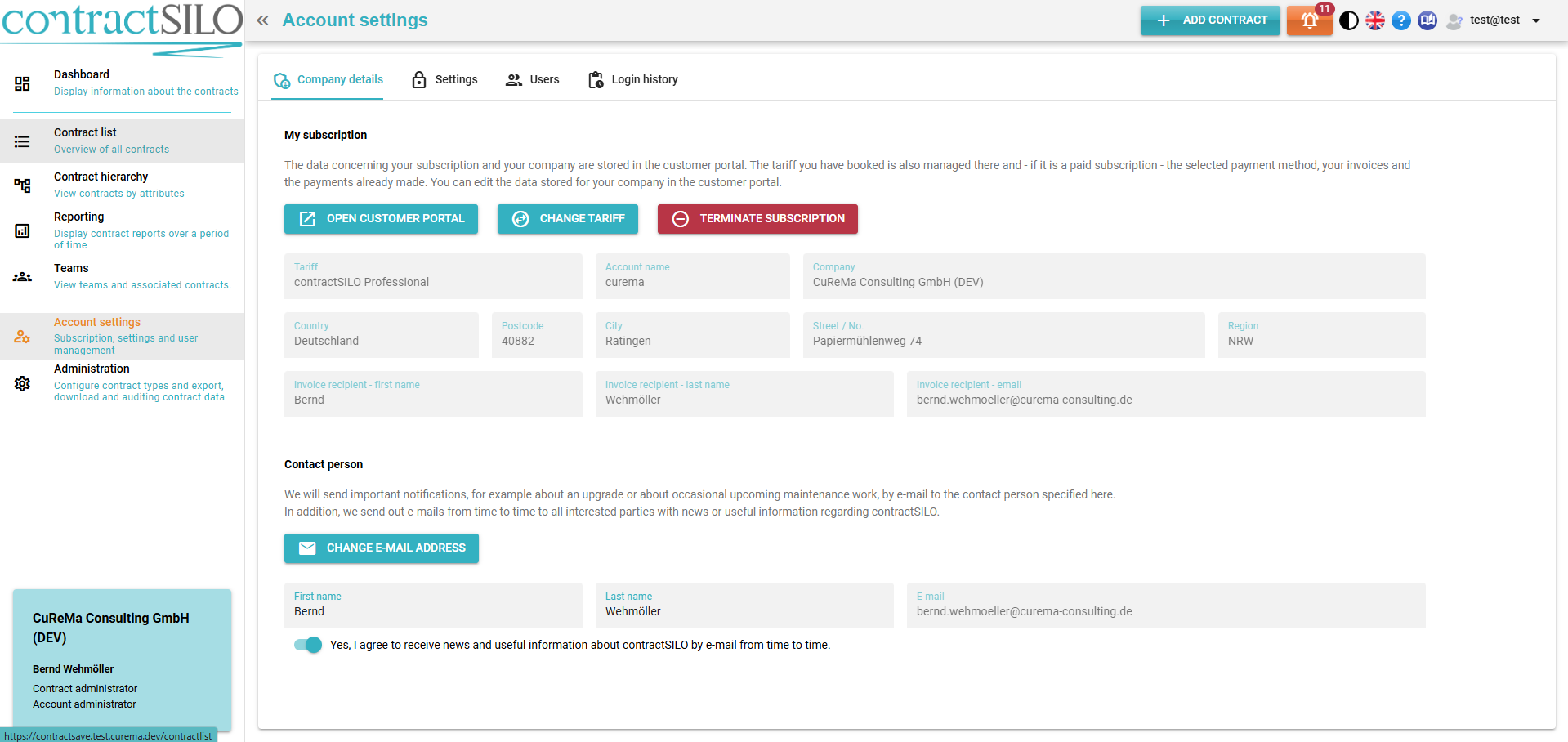
Company Details
Here, you can view the data associated with your account stored by our payment service provider. You can edit this information in the customer portal. You can directly access the customer portal by clicking the corresponding button.
If you wish to cancel your subscription for contractSILO, you can do so by clicking the appropriate button. Your subscription will be terminated at the end of its term. Until then, you can revoke the cancellation at any time by clicking the button again.
The designated contact person will be contacted by us, for example, when we release a new version of contractSILO or in the event of a technical outage. If you have checked the checkbox below, you will also receive occasional information about contractSILO and our other products.
Settings
In this section, you can configure settings for your account.
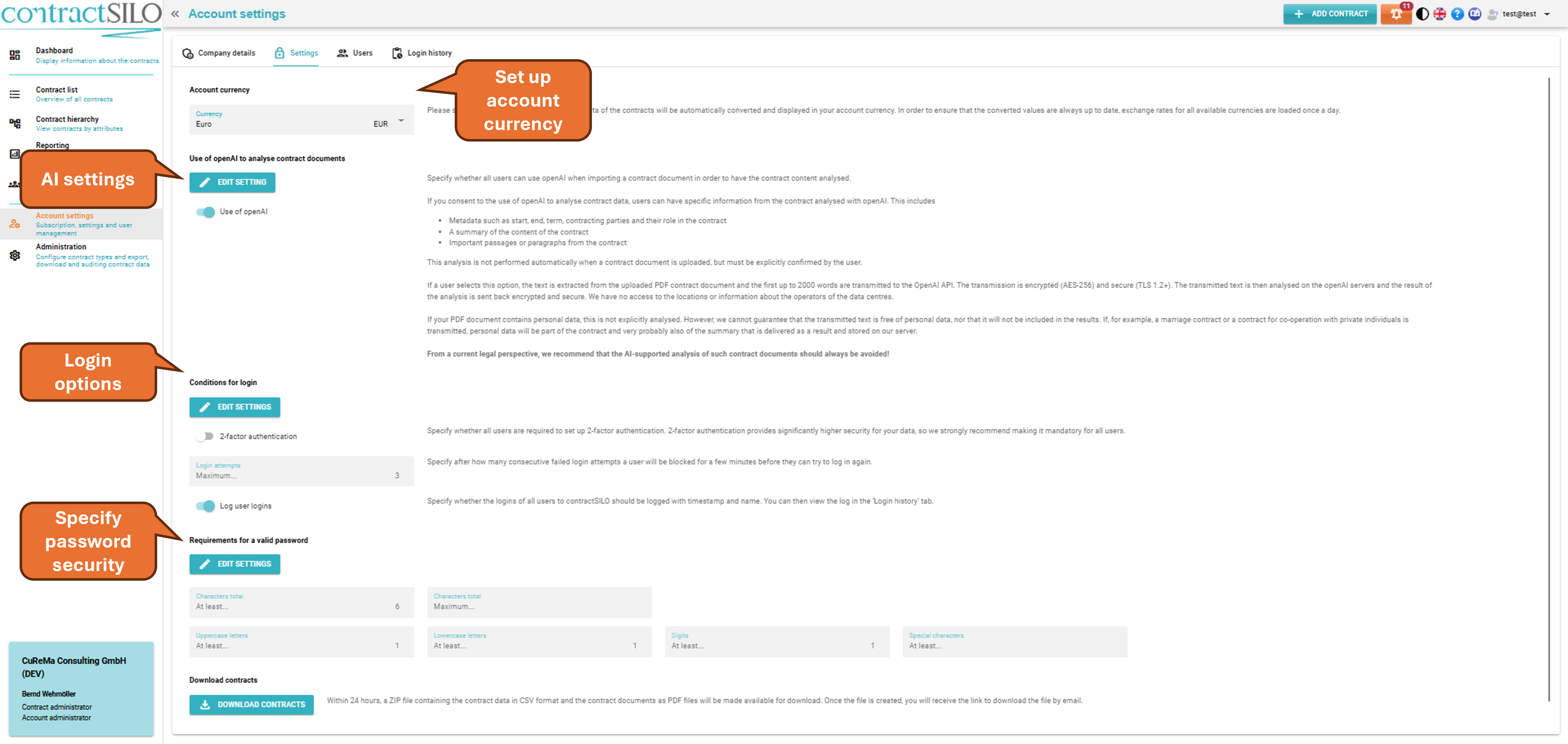
The account currency determines the currency used for calculating and displaying income and expenses. Please also read the article Managing Income and Expenses on this topic.
If 2-Factor Authentication is enabled in the account settings, all users are required to use 2-factor authentication during login. This means that each user logs in with their username and password and then enters a code - either received via an authentication app or email - as an additional step. The code expires after a few minutes.
2-Factor Authentication provides significantly higher security for your data. Therefore, we recommend making it mandatory for all users.
You can also set the password strength requirement. Again, we recommend that you set a high standard.
To protect our software, passwords must always be at least 6 characters long and contain at least one uppercase letter, one lowercase letter, and one digit. You can strengthen the rules, but you cannot weaken them.
Users
In this section, you can invite new users or modify existing users.
Not available in the FREE version
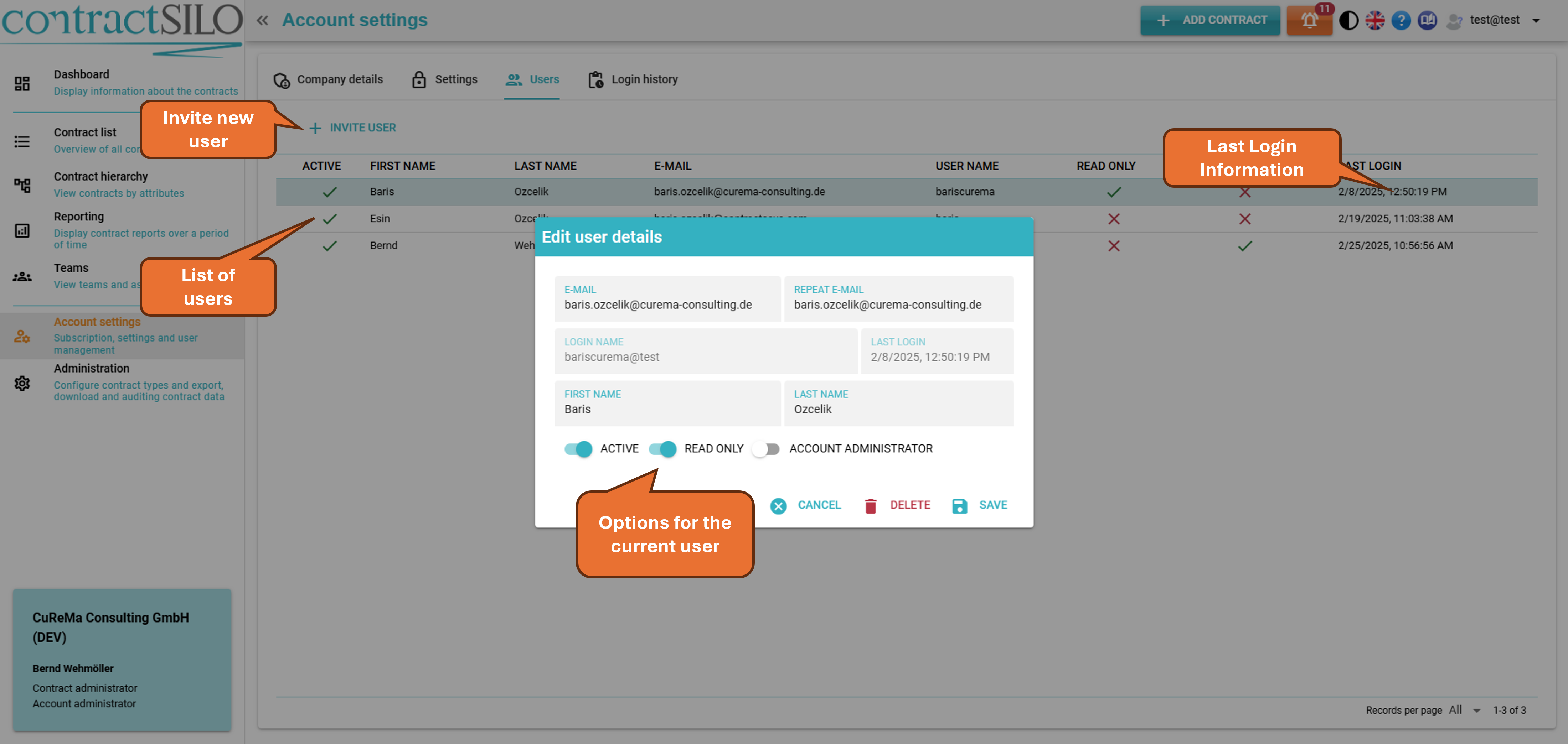
A list of currently existing users is displayed. When you click on a user in the list, you can make the following settings for the user:
- Active: Only active users can log in to contractSILO.
- Read-only: If you want to grant a user access to contracts but restrict them from making changes, enable the read-only flag.
- Account Administrator: Account administrators can view and edit data in the "Account Settings" section. Therefore, carefully consider whom you grant this privilege.
Click on "Delete" if you want to permanently delete the currently selected user. Discussion posts from deleted users will then be displayed as "Deleted User".
Click the "Invite User" button to invite a new user. You need to enter an email address and a username. The new user will then be invited to contractSILO via email.
When inviting a new user, you must also assign them to a team (in the Teams view) to allow them to log in to contractSILO.
Login History
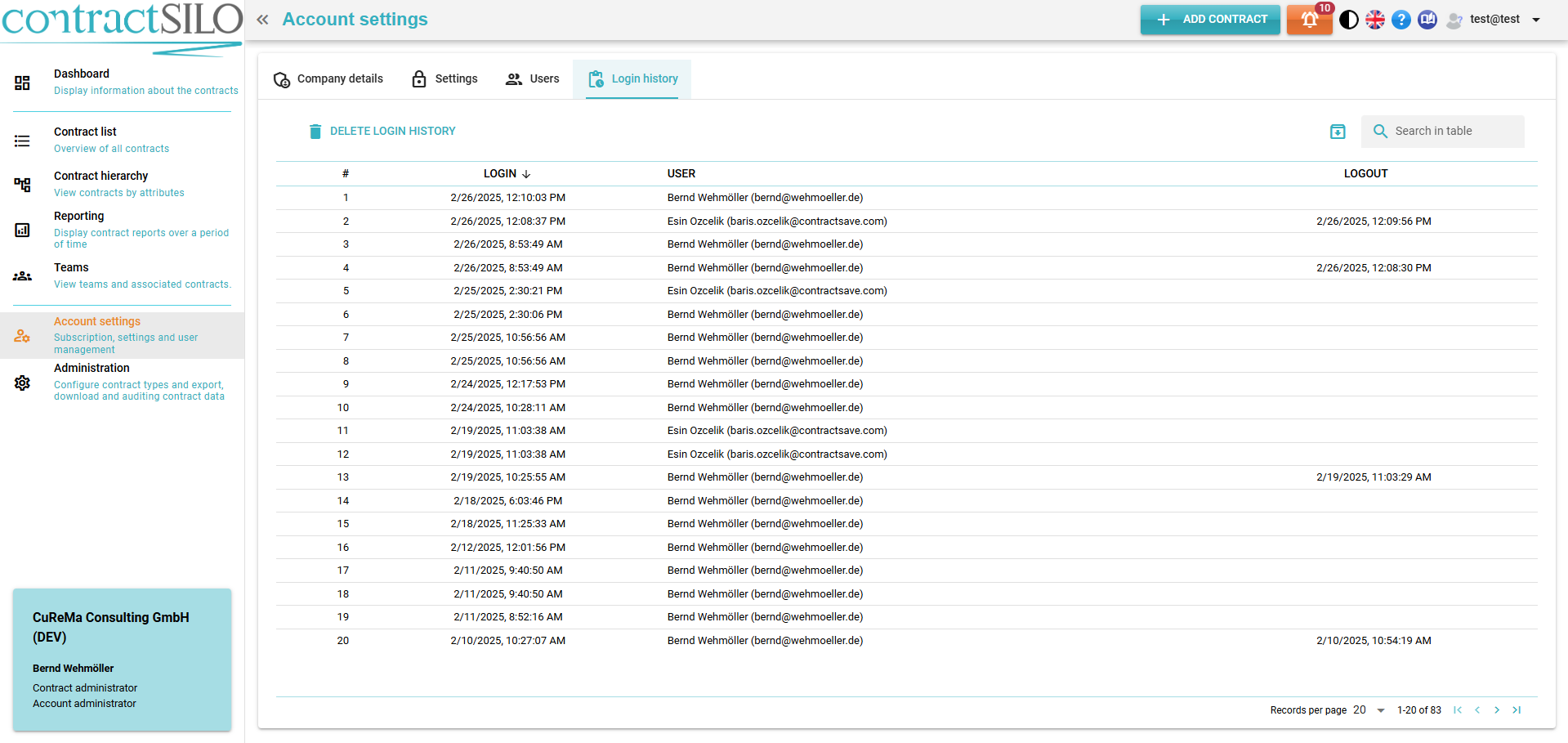
In this section, login and logout information of users can be seen. Related data can be deleted according to a certain time period. Related data can be downloaded. In this section there is also a search box to search for related data.
Administration
The administration menu (Essentials and Professional only) is open to members of the contract administrator team and includes the tabs Contract Types (Professional only), Email Export (Professional only), Download and Audit Contract Data.
Contract Types
In this section, contract types are managed.
Not available in the FREE version
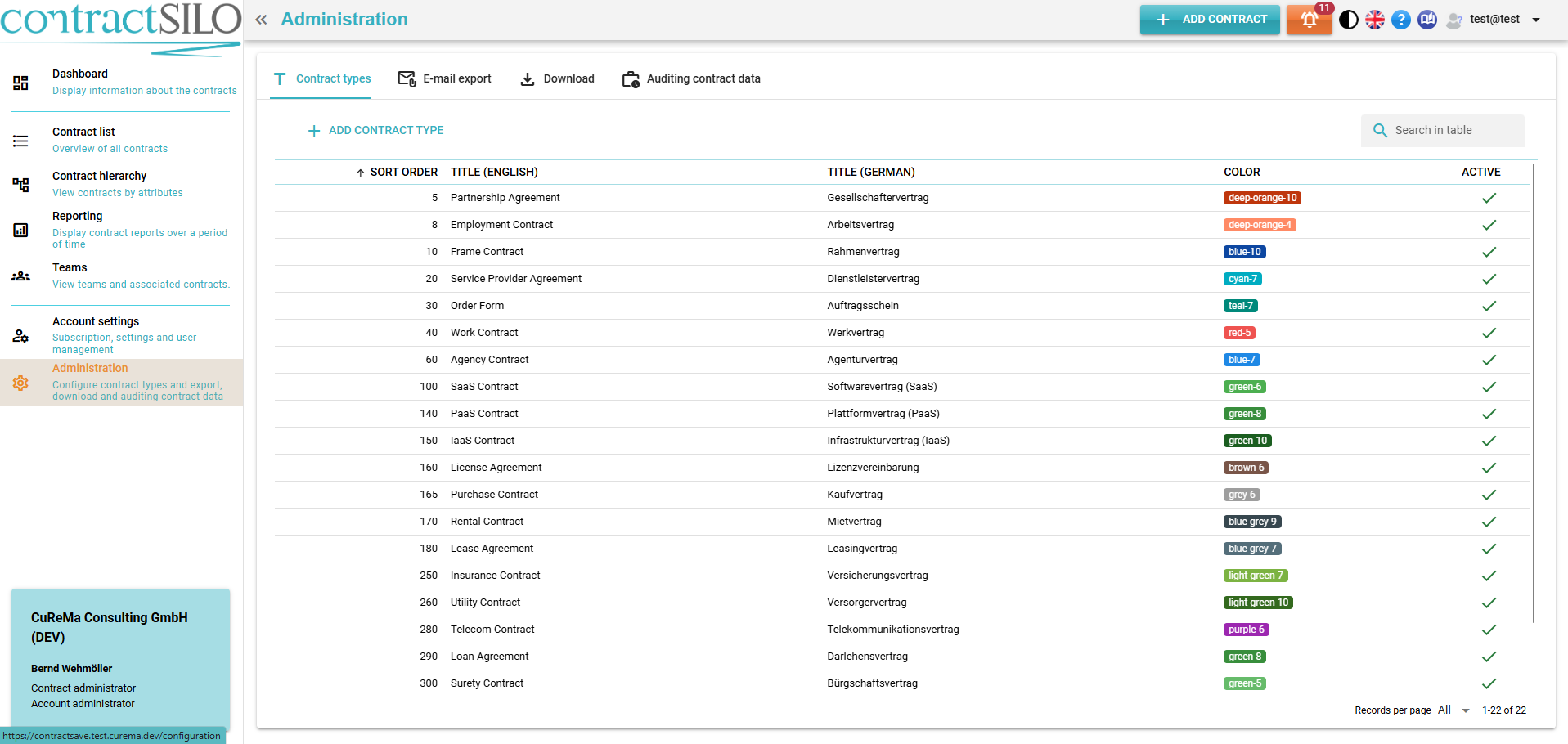
Every contract in contractSILO has a contract type (e.g., employment contract or order form, etc.). In this view, contract administrators can define the available options and delete or modify existing contract types.
Contract administrators are users assigned to the administrator team. They can view and edit all contracts and manage contract teams and contract types. Please also read the chapter Managing Contracts in a Team.
You can change the name and colour of a contract type. The name must be provided in both German and English. Disabled contract types cannot be selected for a contract.
You can only disable or delete contract types if there are no existing contracts associated with them.
Use the Sorting field to specify the order in which contract types are displayed in the selection.
In theory, you can differentiate between an unlimited number of contract types. However, consider which contract types you truly need. To group contracts, you can use the TAG field without requiring additional contract types.
Email export
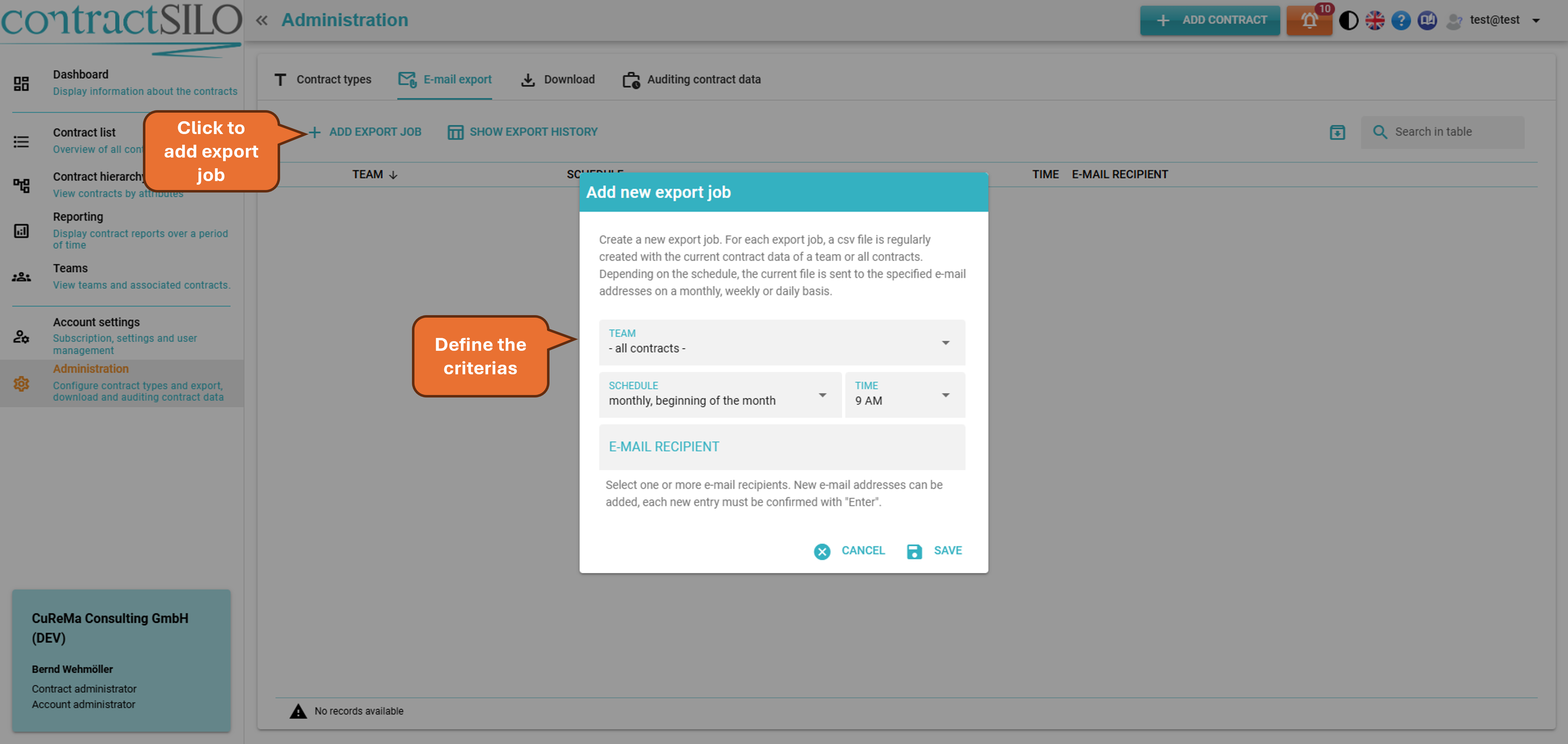
In the ‘Email export’ tab, you can set export orders that enable contractSILO to regularly send a csv file containing up-to-date contract data to the relevant recipients. (Professional version only)
And you can follow and download the export job and history on the page as well.
Download
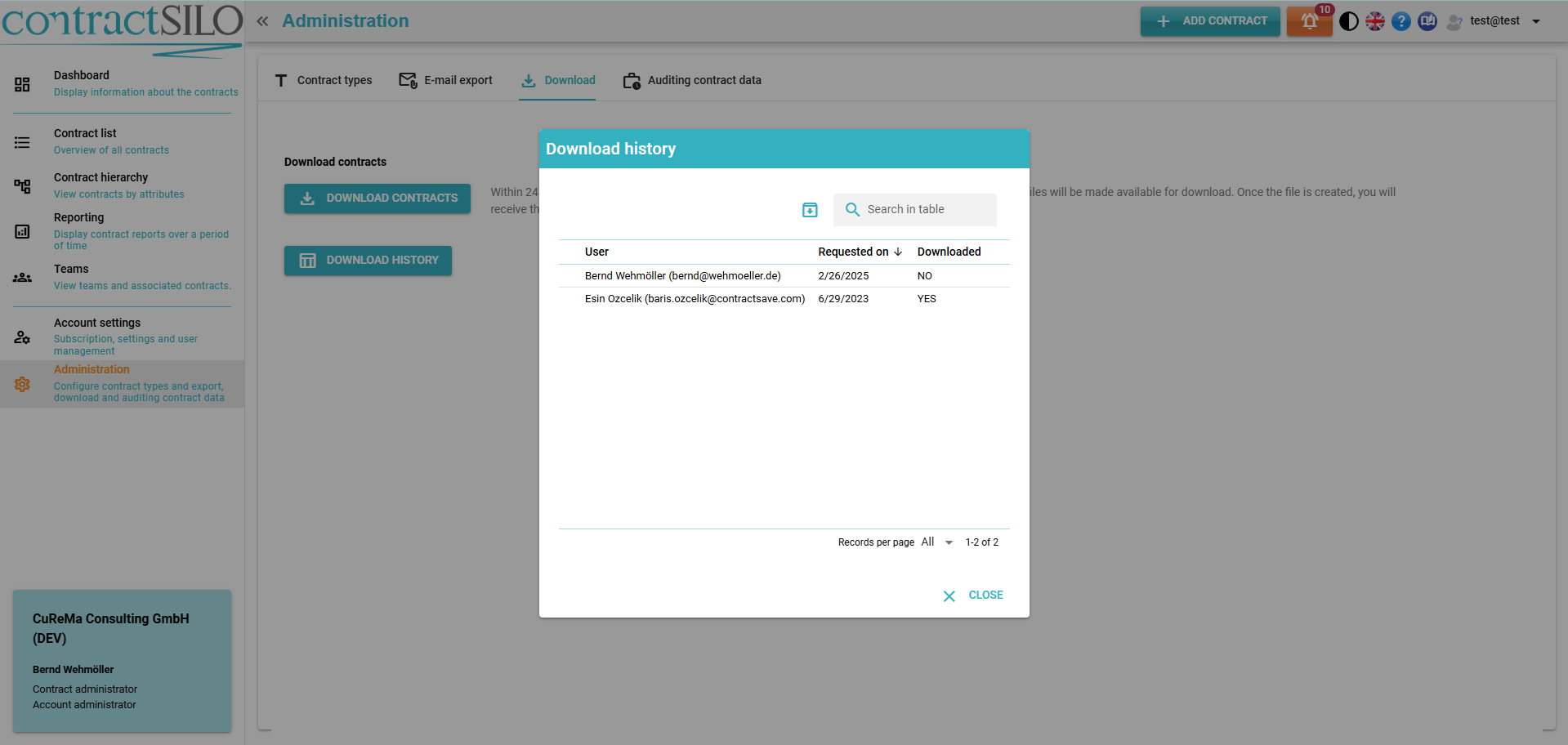
In the ‘Download’ tab, contract manager team members can download a zip file containing the contract documents for the contractSILO account (Essentials and Professional only) and see the download history.
Auditing contract data
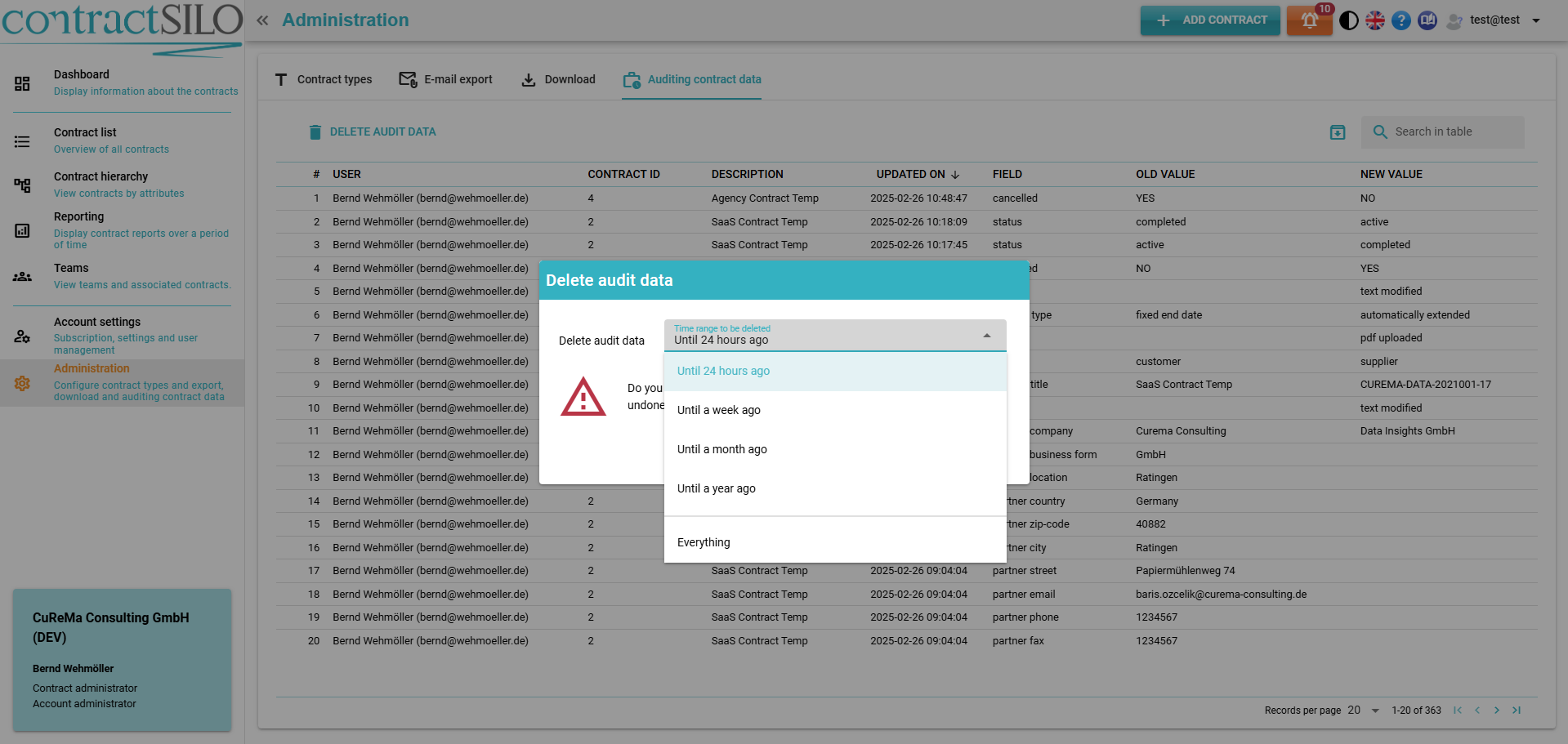
In this tab, you can follow the changes made on the contracts by listing the old and new values, time record and user details.
The deletion of this data on a specific schedule can also be planned on this page.