Dashboard
The Dashboard provides you with quick access to highlighted contracts and displays some contract statistics. The following information is shown:
- Key metrics about contracts
- Revenue and expenses related to contracts (only available in Essentials and Professional versions)
- A list of your favourite contracts
- A list of contracts expiring soon
- A list of latest contracts
- A graph showing contract status
- A graph displaying the top 5 partners
- A graph showing the top 5 contract types
Key Metrics
The following information is displayed here:
- The number of contracts in any given status.
- The number of contracts with an end date approaching within 60 days.
- The number of contracts with an end date approaching within 90 days.
Income and Expenses
Contracts associated with regular payments are used to calculate revenue and expenses. To learn more about how contractSILO calculates revenue and expenses, please visit this page.
The Dashboard displays revenue and expenses. The table contains revenue and expenses for the current 3 months or the current 3 years.
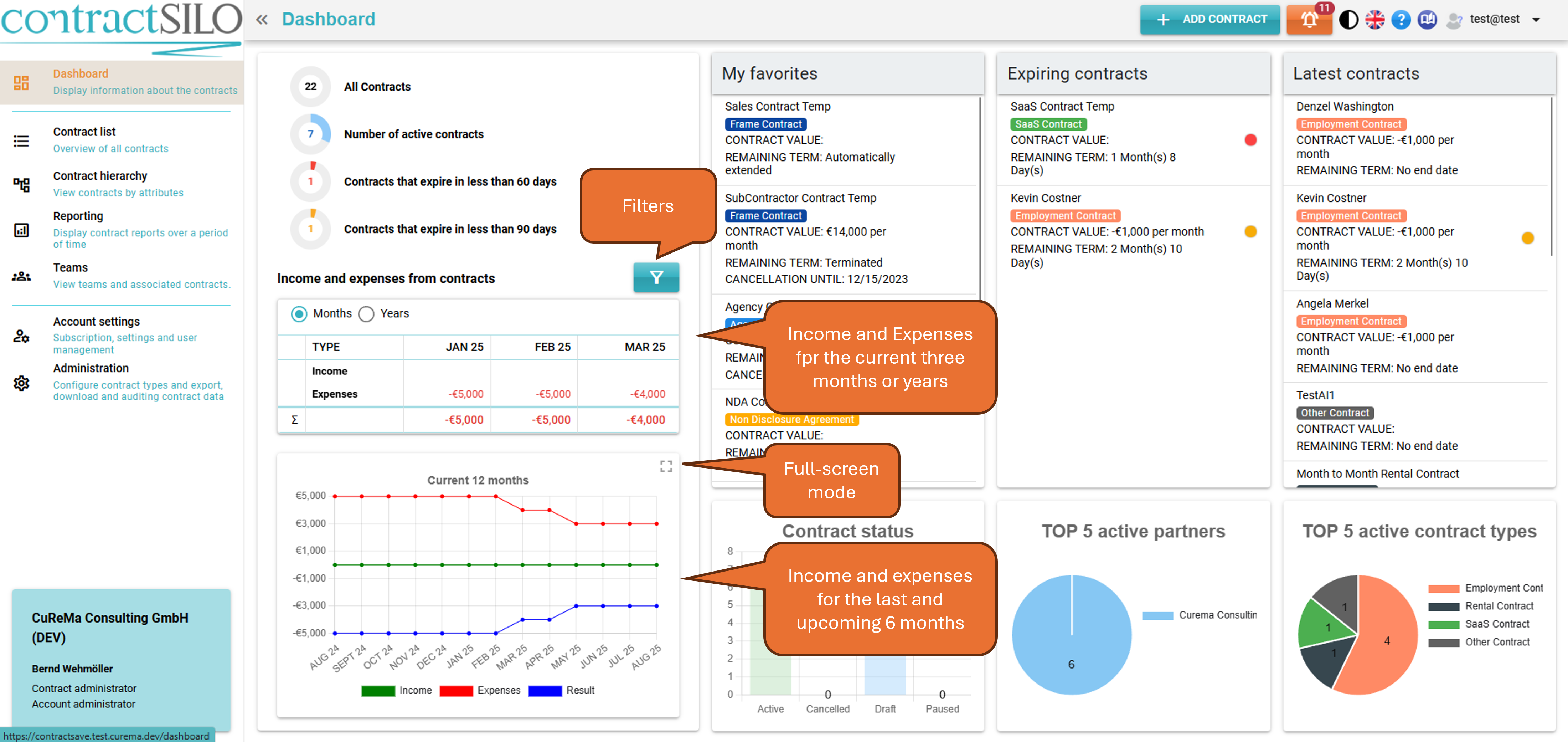
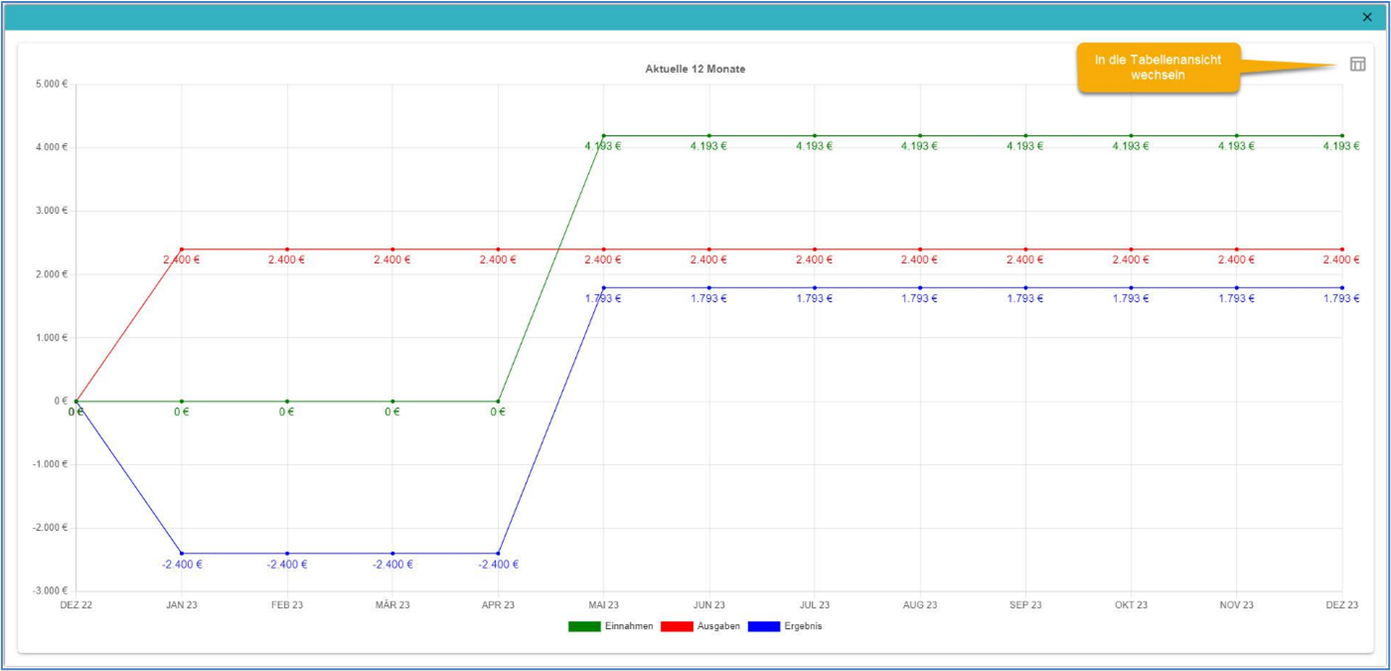
The graph displays revenue and expenses for 13 months: the current month, 6 months in the past, and 6 months in the future. You can enlarge this graph by clicking the icon in the top right corner.
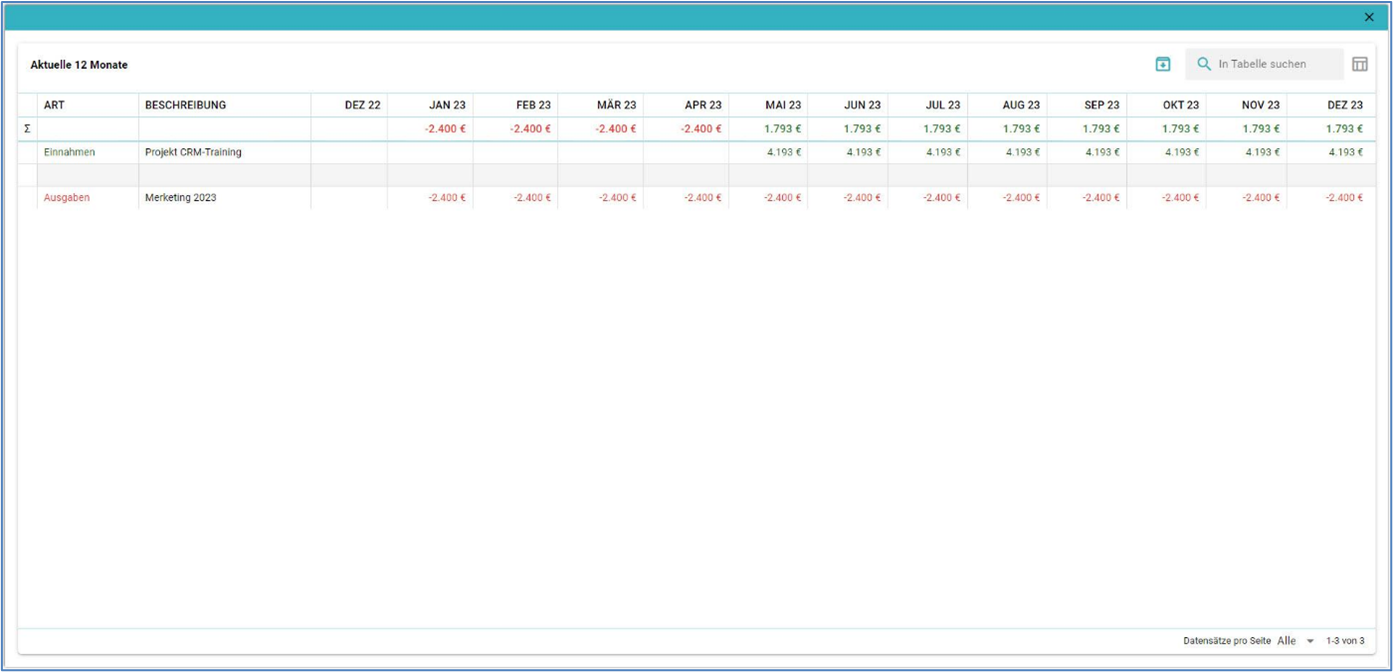
To view a table with the data, click the small icon in the top right corner.
Favourites
This list displays all contracts that the current user has marked as favourites. A contract in the list can be clicked on and will be displayed in the Detail View for that contract.
Expiring Contracts
This list displays contracts with an end date approaching within the next 90 days.
- Contracts marked in red will expire within the next 60 days.
- Contracts marked in orange will expire within the next 90 days.
Contracts expire when an end date is set, and the date is approaching soon. You can click on the contracts in the list to view the Detail View for the contract.
Latest Contracts
This column presents the most recent contracts. You can click on the contracts in the list to view the Detail View for the contract.
Please check the Contract Details topic for more information about the Detail View.
Contract Status
This graph displays the number of contracts in different statuses. The following statuses are available:
- Draft - The contract has been entered into the system but is not yet active.
- Active - The contract is active. Please note that a contract can be active even if the end date has already been reached.
- Paused - You have the option to set a contract as "Paused" to indicate that it is not currently active, although it has not been terminated.
- Cancelled - The contract has cancelled.
When you click on a bar in the graph, the contract list will be displayed, showing contracts that match the selected status.
There is an additional status called Archived. Users cannot directly delete contracts; only a contract administrator can do so. However, users can archive a contract, which means it will no longer be displayed and can only be seen by a contract administrator. Contract administrators can reactivate or permanently delete an archived contract.
Top 5 Active Partners
This graph displays the top 5 partners based on the number of active contracts. Contracts with other partners are grouped under "Other." You can click on an element in the graph to select and display the corresponding contracts in the contract list.
Top 5 Active Contract Types
This graph displays the top 5 contract types based on the number of active contracts. Contracts with other types are grouped under "Other." You can click on an element in the graph to select and display the corresponding contracts in the contract list.