General Information
In this section, general information about the contract is entered.
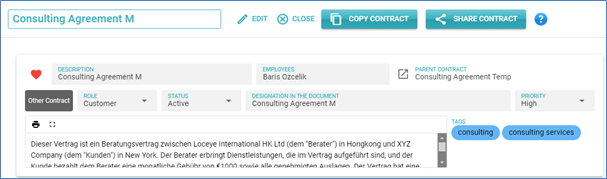
Description
The description is used in various views to identify the contract and should be chosen in a way that users can understand what the contract is about.
Essentially, the description is like an ID for the contract and should always be unique. Be careful not to make the description too long, as it can become confusing in different views.
Employees
If the contract is associated with an employee (e.g., in an employment contract), enter the employee here. The field is used in the search and in the Contract Hierarchy view. When entering, a list of known employees will be displayed, but you can also add a new name.
Parent Contract
If there is a parent contract, it can be selected using the button.
Cost Center
Create a Cost Centre or select and assign from existing Cost Centres.
Contract Type
Click the button to change the contract type. The contract type is used in various views.
Role
Enter the role you have in relation to the contract.
- No Role: You have no specific role in the contract (for all contracts where no payments are involved).
- Customer: You are the customer and have to pay for the contract performance (e.g., purchase contracts and employment contracts if you are the employer).
- Supplier: You commit to delivering a service or product and get paid for it (e.g., work orders or lease agreements if you are the tenant).
The role is evaluated when calculating contract values. Contracts with the Supplier role is calculated positively, while those with the Customer role are calculated negatively. So, you can always select the Supplier role when you have to pay for something. If you are being paid, select the Customer role. If the contract does not involve anyone having to pay for something, simply select No Role.
Status
Contracts can have one of the following statuses:
- Draft: The contract is still in draft status or not yet signed.
- Active: The contract is active.
- Paused: The contract is active but currently paused.
- Completed: The contract has ended.
Only active contracts are considered when calculating income and expenses.
There is another status called Archived, which cannot be selected here. Archived contracts can only be viewed and edited by contract administrators (in the Teams view).
Designation
The official designation of the contract. Usually, this is a contract number, or a designation as defined in the contract itself.
Version
For informative purposes, you can enter a version number for the contract here. It will be displayed in the contract list, and you can also filter by it.
Priority
You can assign a priority to a contract ranging from Low to Critical. It will be displayed in the contract list, and you can also filter by it.
Reference
You can enter any reference for a contract. This can be, for example, a contract number that you store in other systems. This field is taken into account in a full-text search in the contract list.
Text Editor
In the text editor, you can enter arbitrary text. Here, you can add additional information that is not included in the contract itself.
Tags
You can add tags to a contract. Later, you can search for contracts in the contract list based on these tags. In the Contract Hierarchy view, there is an option to display contracts by tags. This can be helpful if you want to label all contracts related to a specific product.
Tags are great for grouping contracts. For example, you can add the tag "Insurance" to insurance contracts and then see a list of all insurance contracts in the Contract Hierarchy view.