Use contractSILO optimally
Here are some suggestions on how to make the most of the software:
-
- Utilize Help and Documentations
- Utilize Teams (only available in Professional Version)
- Contracts
-
- Contract list
Utilize Help and Documentation
In the title bar, you will find two icons to access online help and documentation. We have made efforts to provide detailed descriptions and documentation to make working with contractSILO easier, especially in the beginning.
When you access online help, a tour will appear to provide assistance for the current view.
Utilize Teams
If you have subscribed to the Professional version, we recommend using Teams to grant access to contracts for your employees. Learn more about maintaining and utilizing contract teams, pls. refer to the Managing the contracts in a team title.
By using contract teams, you ensure that only authorized employees can view and modify contracts. Make sure to assign employees to a team only if they truly need access to the team's contracts. Utilizing Teams is particularly beneficial when you have many contracts that should only be accessible to specific individuals.
contractSILO allows you to have discussions about contracts. All users with access to a contract can follow and participate in the discussion. You can also choose the user you want to message by using the "@" icon.
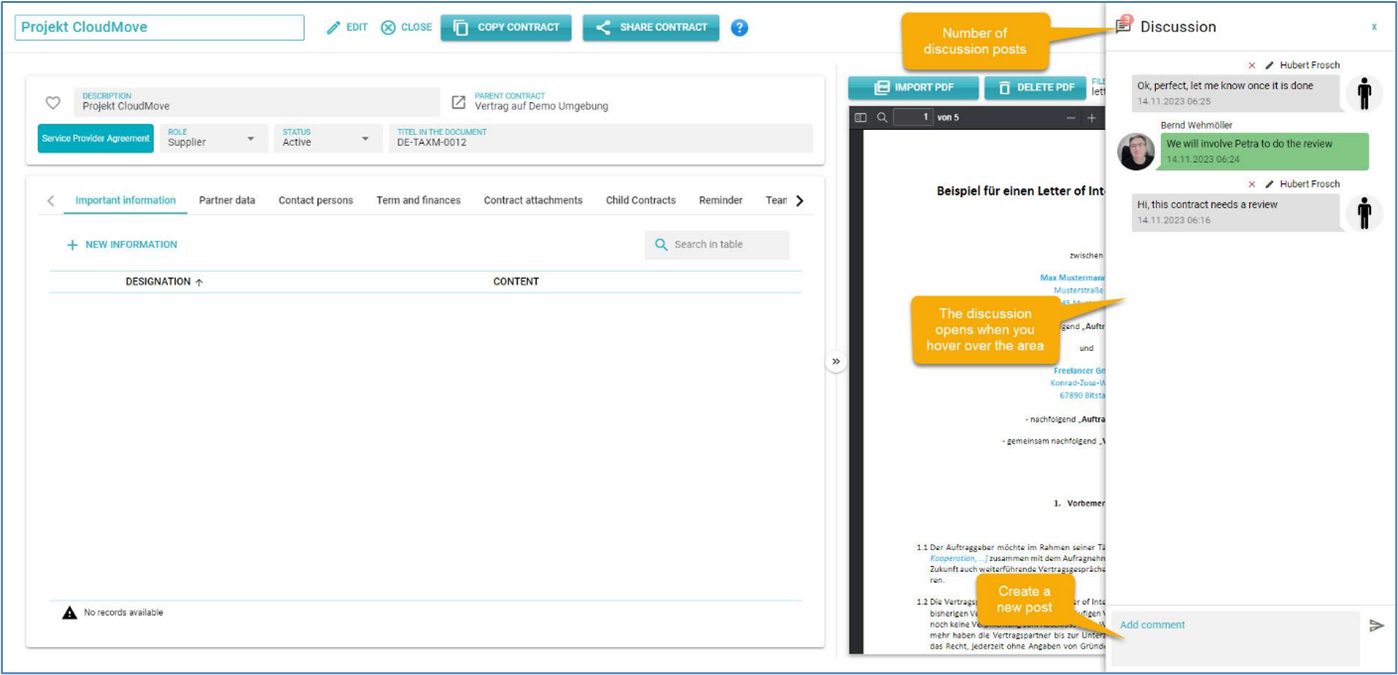
When a new discussion post is shared, all users with access to the contract will receive a notification, which will be displayed in the title bar.
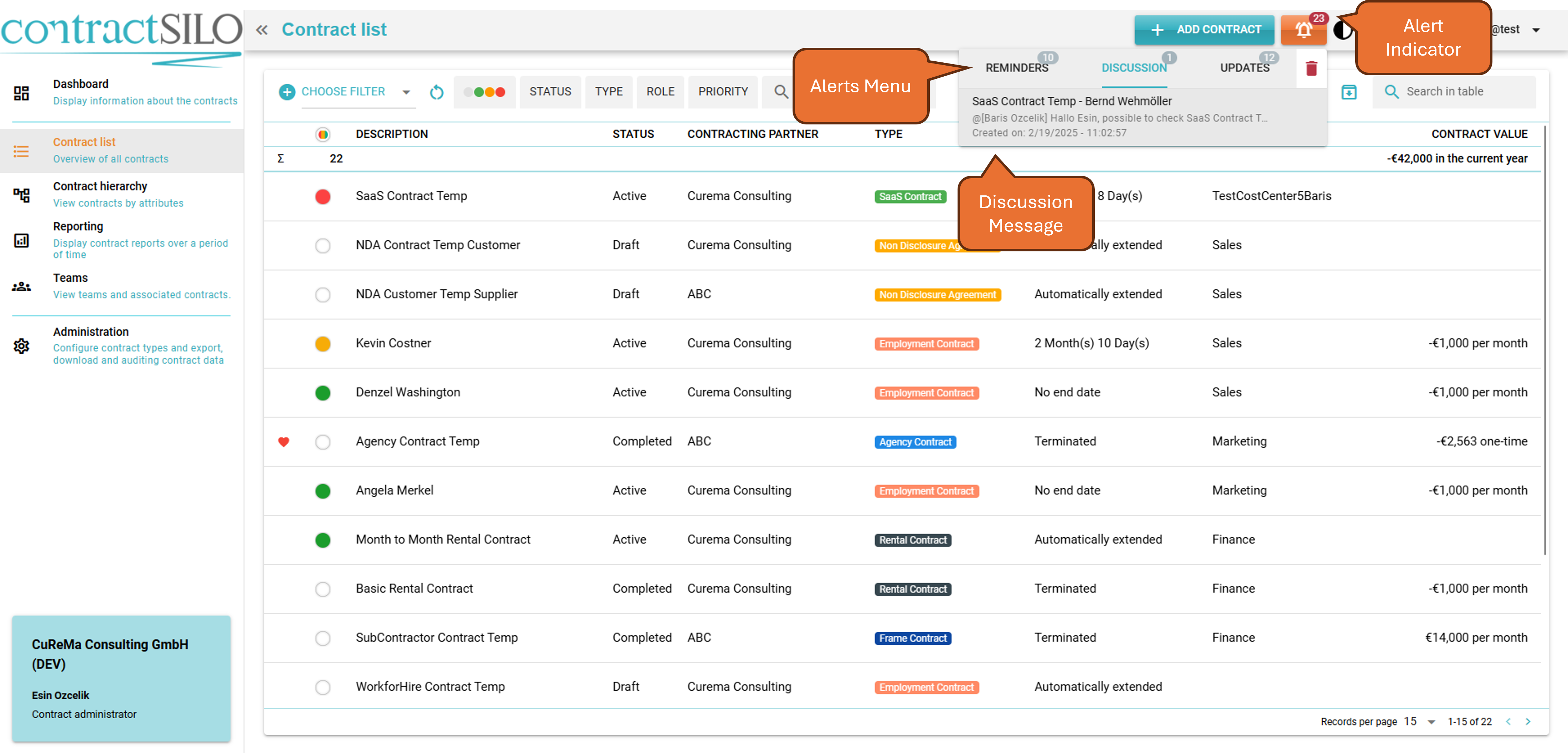
Contract discussions are available in the Essentials and Professional versions.
Favourite Contracts
You can mark a contract as a favourite by clicking on the heart next to the contract name in the contract's detail view.
Favourited contracts will be highlighted in the Dashboard, and their details can be easily accessed by clicking on the entry in the “My Favourites” list.
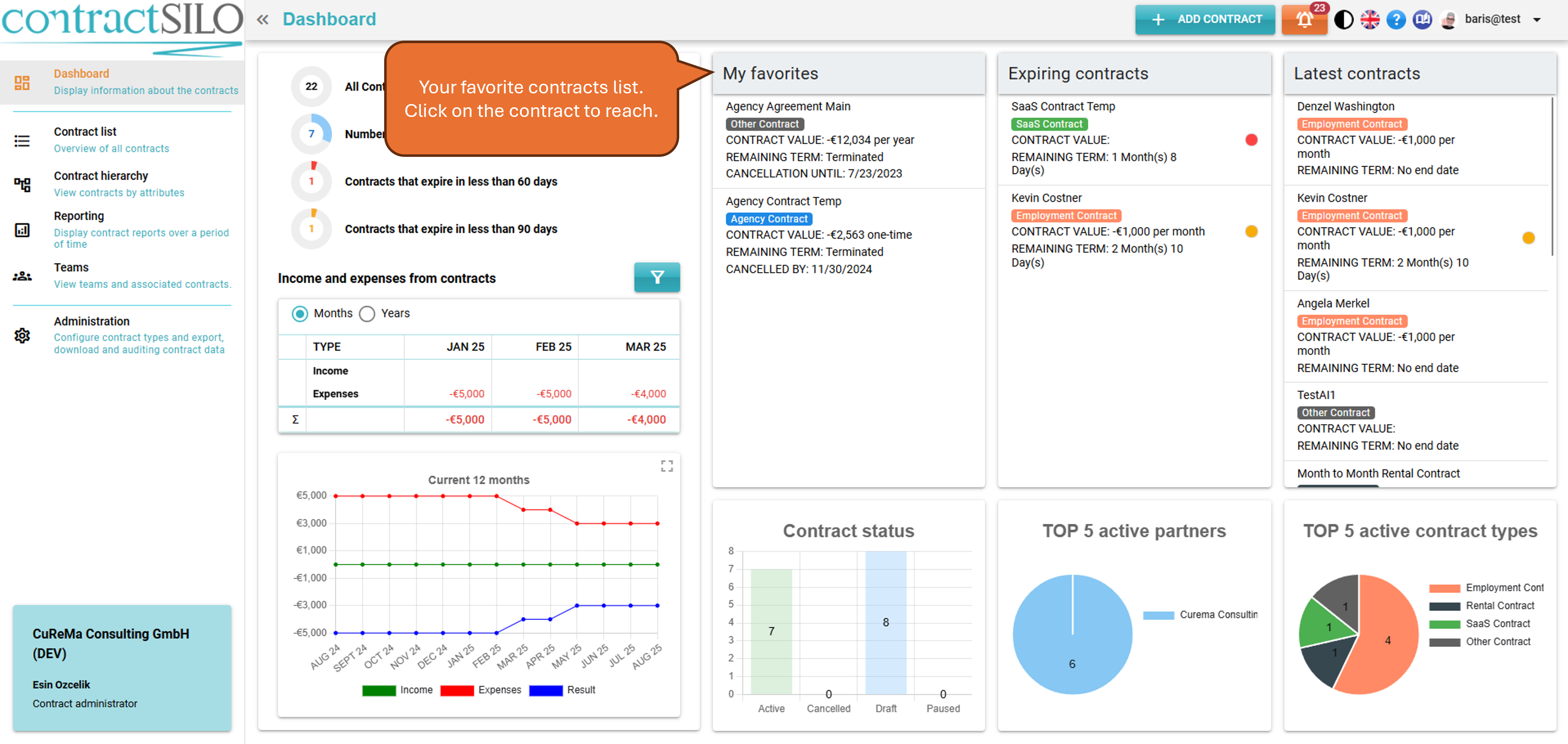
Your favourite contracts will be highlighted with a red heart in the contract list and contract hierarchy.
Favourite Contract Partners
If you frequently enter your contracts with a specific partner, you can mark them as a favourite. To do this, open the detail view of a contract and switch to the Contract Partners tab. Click on the small heart next to the name of the contract partner.
This will designate the partner as a favourite and add them to the list of favourited partners. Now, any user can load the partner, along with all their data, directly from the Favourites list.
Click the heart again if you want to remove the partner from the list of favourites.
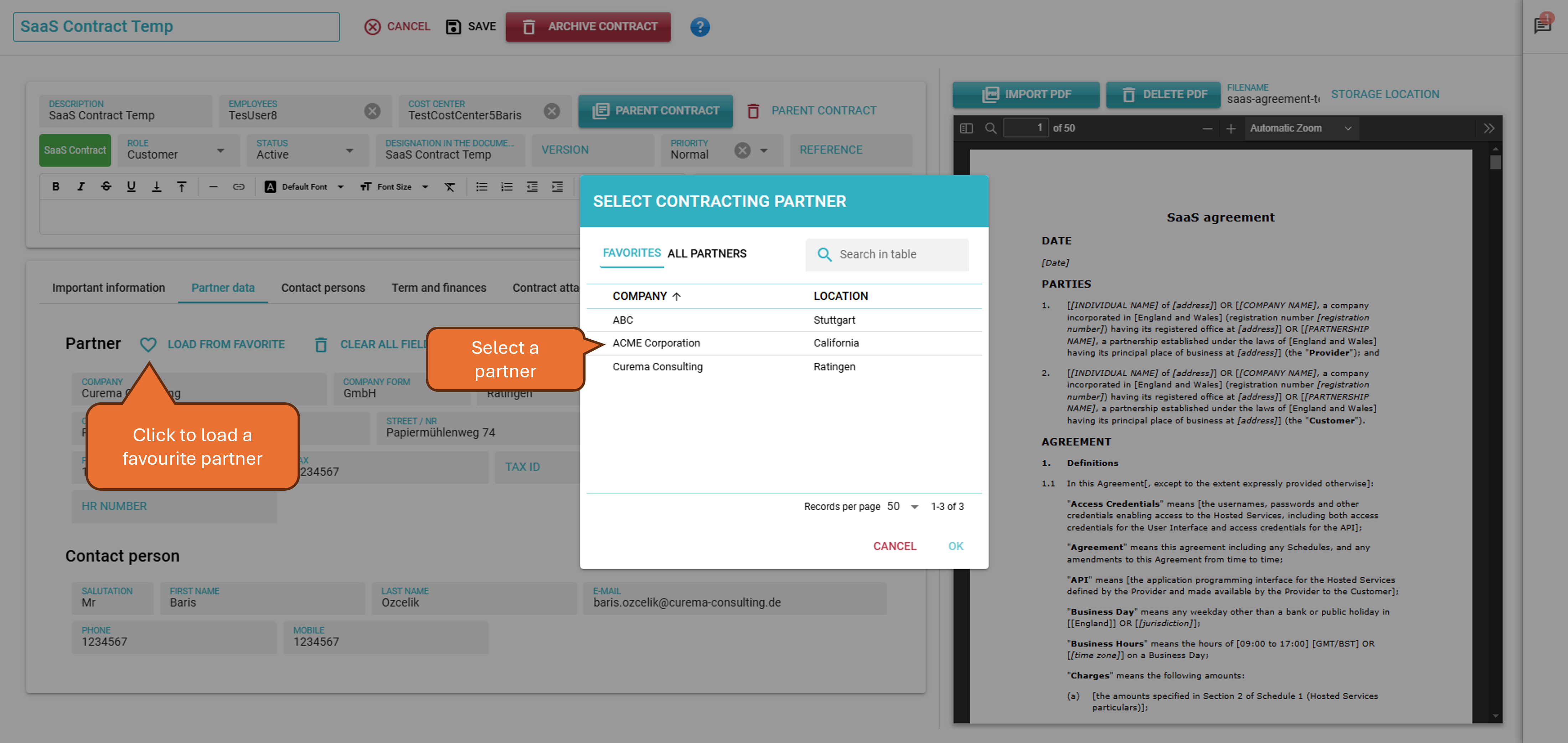
To load a favourited partner, switch to edit mode and click the "Load from Favourites" button. You can search and select the partner in a dialog. After clicking OK, all the partner's data will be imported.
Track Income and Expenses
Contracts are typically associated with payments, whether you receive money or need to make payments. contractSILO can automatically calculate expenses and income based on payment information.
To learn more about managing and displaying income and expenses in contractSILO, pls. check the Managing Income and Expenses topic.
Search in Contract Documents
If you have loaded a contract document (PDF), it will be displayed in the contract's detail view and the “Contract hierarchy” when you select a contract. The PDF viewer allows you to search for text directly within the document.
Click on the magnifying glass symbol above the PDF display to search for text. You can enter a search term and choose whether all occurrences should be highlighted. Use the > and < buttons to navigate to the next or previous occurrence of the search term.
The number of occurrences of the search term in the document will also be displayed.
Utilize Read-Only Access for Users
Sometimes you may want to grant a user read-only access to your contracts, allowing them to view contracts but not make any changes.
In the Account settings view, under the Users tab, you can set the "Read-Only Access" flag for a user when you click the user. From then on, the user can still view contracts and participate in discussions but cannot modify the contract data.
Customize and Sort the Contract List
The contract list displays all contracts visible to you. You can select the fields that interest you and sort the list by any displayed field.
Pay attention to the first column in the Contract list, where contracts are colour-indicator based on the time remaining until they expire. This colour indicator can be a useful tool, if it's important for you to react early to expiring contracts.
To learn more about the contract list, pls. refer to the Contract List topic.
Use Personal Filters
Take advantage of the ability to create personal filters in the contract list. Once you have created and saved a filter, you can access it any time, saving you clicks when you are interested in specific contracts.
Learn more about personal filters in the contract list pls. check the Personal (Custom)Filters title.
Export Data
You can export the data displayed in the contract list to a CSV file for further processing, such as using MS Excel.
Additionally, you can export the income and expenses for the current period. To do this, zoom in on the income and expenses chart in the Dashboard, switch to the table view, and click on the Export button.
Utilize the Dashboard
The Dashboard provides a quick overview of statistical data, income, and expenses associated with contracts. You can also use the Dashboard to quickly access specific contracts.
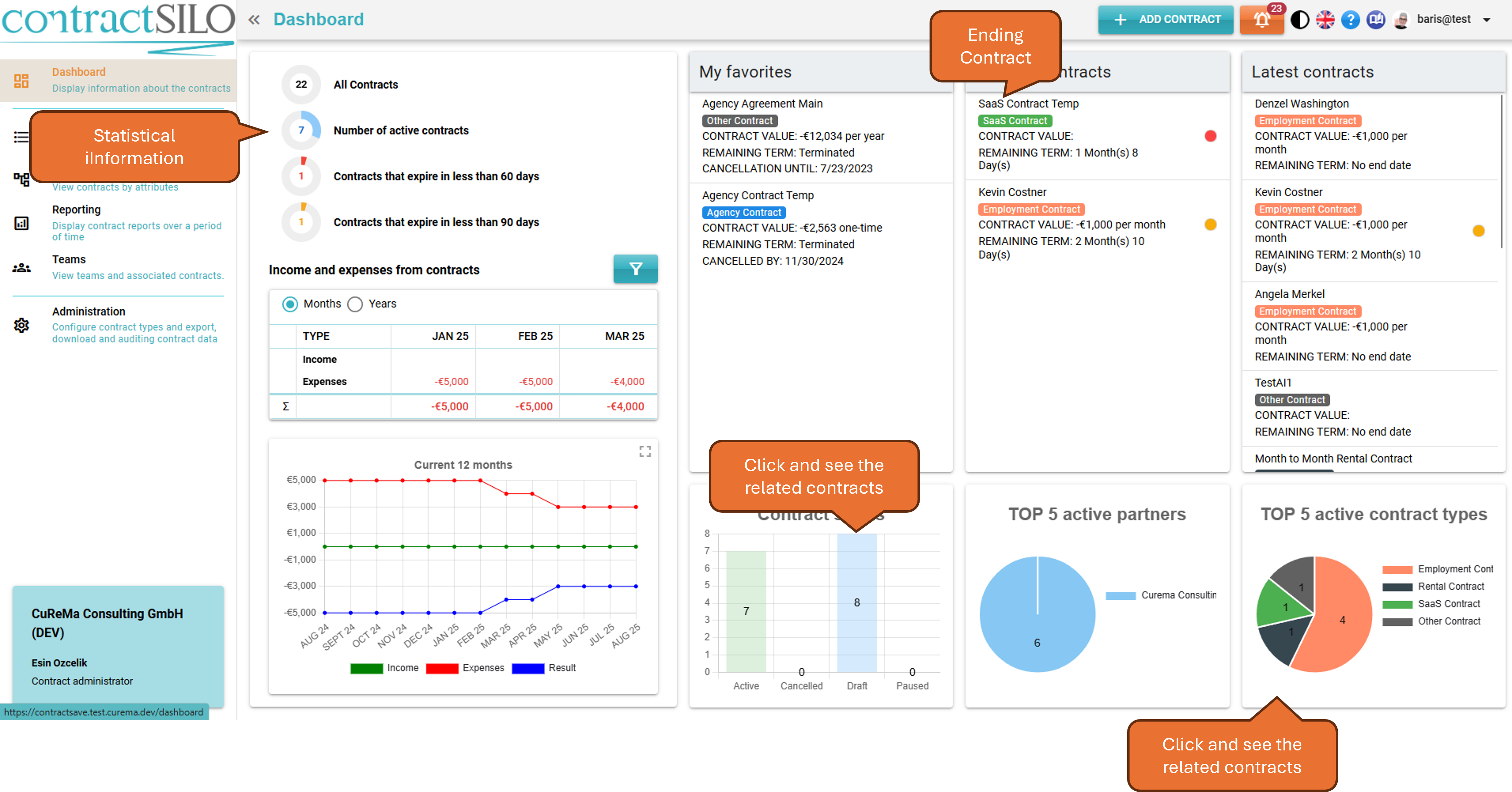
In the "Expiring contracts" list, all contracts expiring within the next 90 days are displayed. You can directly access the details of a contract by clicking on it.
This works for the other two lists as well.
When you click on any data element in one of the three charts, the contract list will switch to display contracts associated with that data. For example, clicking on one of the segments in the "Top 5 Active Contract Types" chart will display all contracts associated with that contract type partner.
To learn more about the Dashboard and its features, pls. refer the Dashboard title under User views topic.
Utilize Reminders
contractSILO sends you reminders for expiring contracts via email if you have set reminders for your contracts. You can also add your own reminders, which can be sent to all team members or just yourself.
For example, you can set a reminder to start negotiations on contract changes at a specific time.
Reminders for contracts, new discussion posts on contracts, and changed contracts will also be displayed in the toolbar.
To learn more about adding contract reminders and ensuring email reminders are sent, pls. refer to the Contract Reminders topic.
Utilize Contract Hierarchy
In addition to the contract list, there is another view that provides an overview of your contracts. The contract hierarchy displays contracts based on various predefined criteria.
This view becomes especially valuable when you group your contracts with tags or when you have many contracts associated with employees. It allows you to quickly access the relevant contracts without having to set filters.
To learn more about the contract hierarchy, pls. go to Contract hierarchy page.