Invite a New User
To perform this task, you must be assigned as Account Administrator and be subscribed to at least the Essentials version of contractSILO.
Switch to the Account settings view and select the Users tab.
Click on "INVITE USER" button to display the pop-up window for a new user.
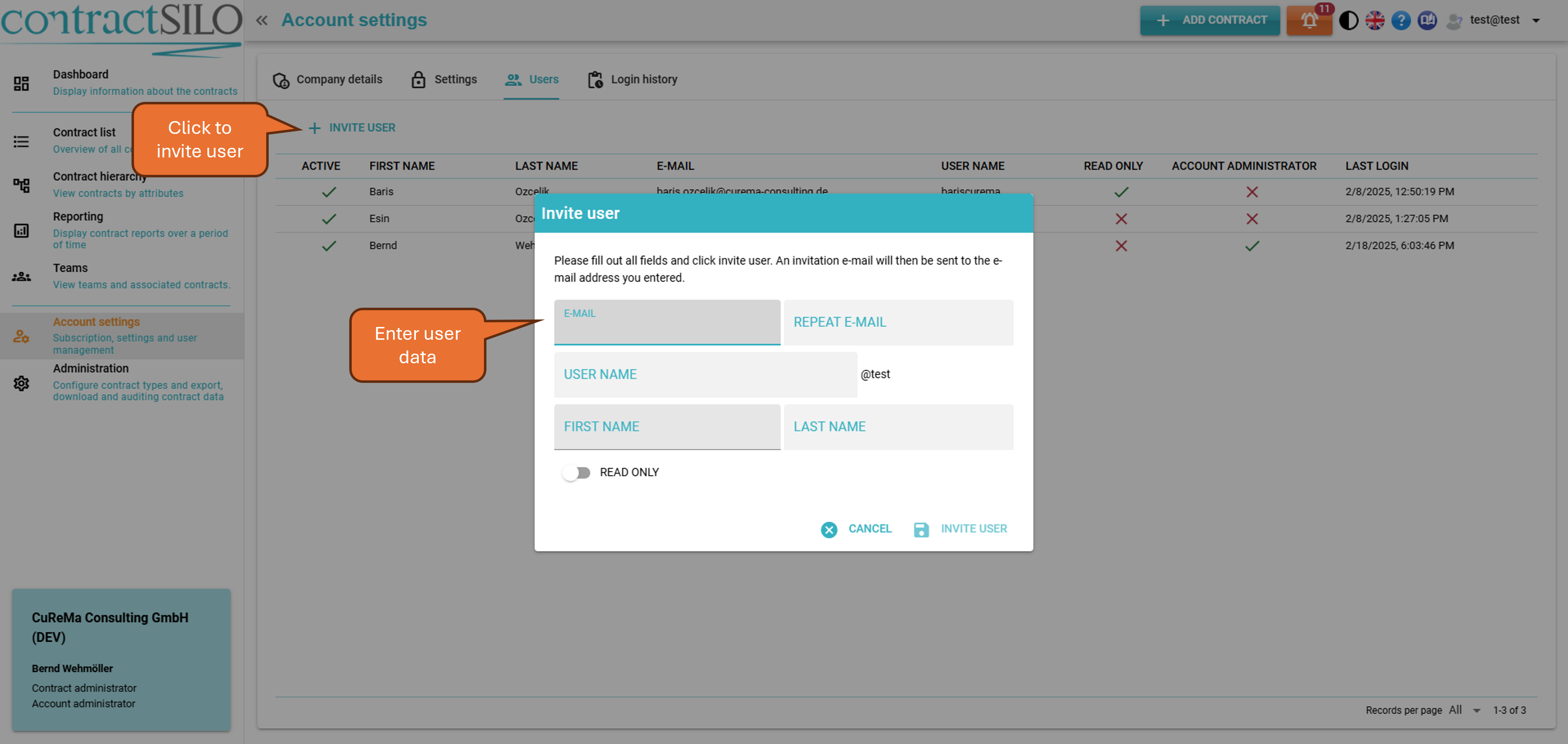
Enter the user's email address. Assign a username and enter the first and last name. If the user should only have read access, turn on the “READ ONLY” switch below the "FIRST NAME" field.
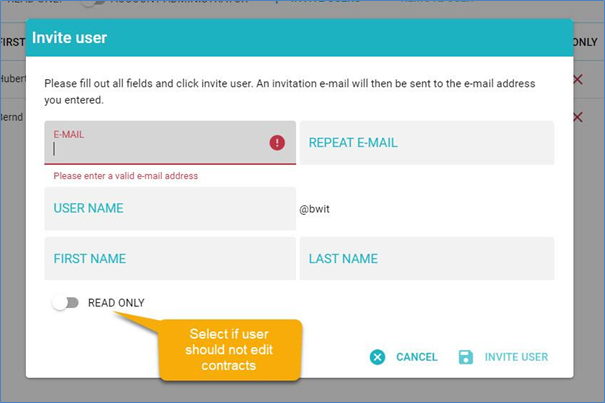
Click on "INVITE USER" to send the invitation. The new user will receive an email with a link to accept the invitation.
After the pop-up window is closed, mark the new user in the list.
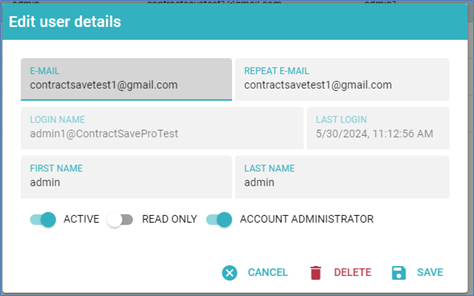
When you click on the user, you can change the settings:
- Active: If the switch is on, the user can log in. You can completely deny a user access by setting the switch off.
- Read-Only: If the switch is on, the user cannot edit contracts. However, they can participate in discussions about a contract.
- Account Administrator: If this switch is on, the user can access the Account view and modify all settings. Make sure to assign this role only to users who are allowed to manage your account.
Now switch to the Teams view to add the user to a team.
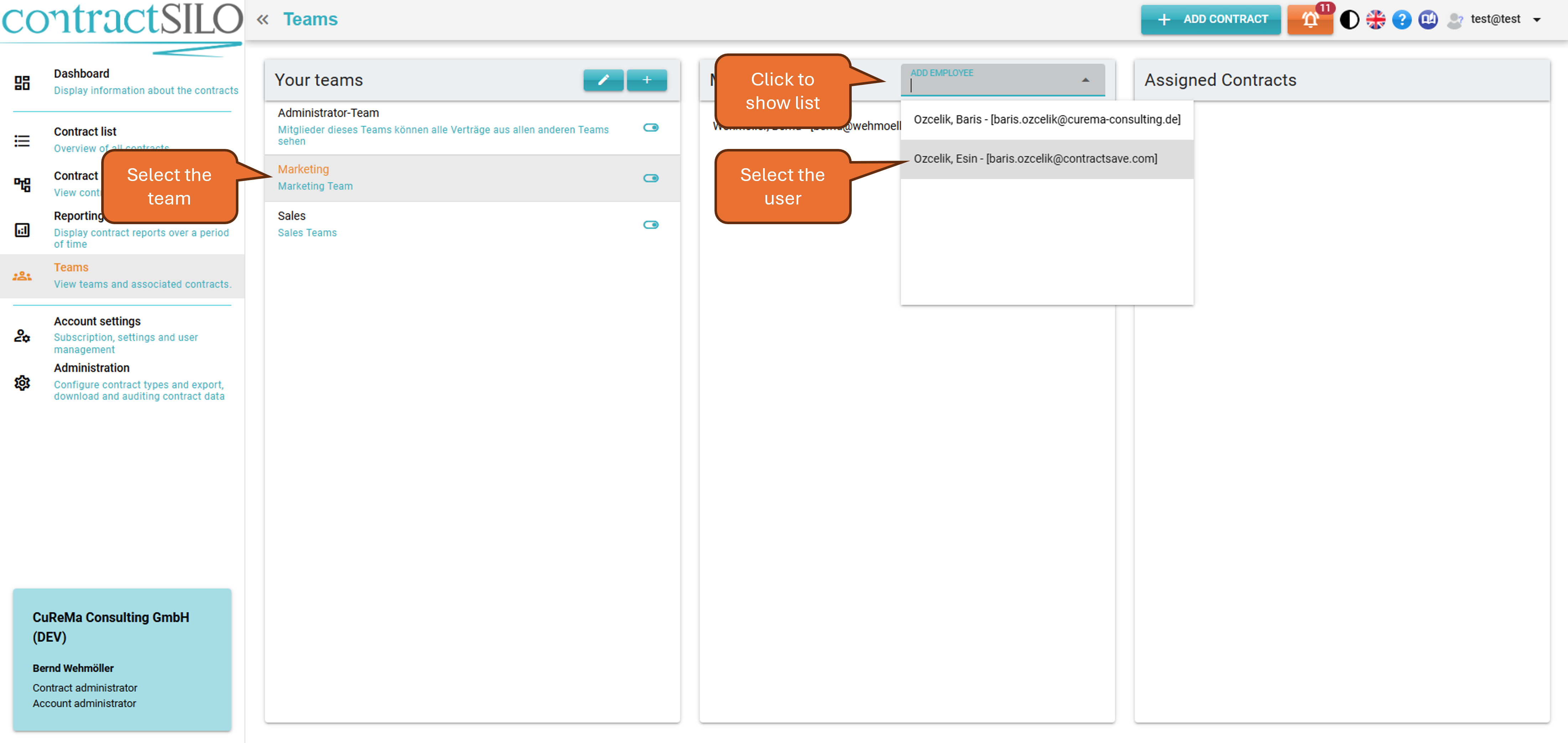
In the "Your Teams" list, select the team. Then click in the "Add Employee" field and either select an employee from the list or enter the employee's name. The employee will be added to the team and can now see all contracts assigned to the team itself. You can view these contracts in the "Assigned Contracts" list.
You can also add the employee to additional teams. The employee can see all contracts assigned to at least one of the teams they are a member of.
To make the employee a contract administrator, select the Administration Team. This will allow them to see all contracts in the system as well as to create and manage contract teams.
Now you have invited a new employee and assigned them to a team. The employee can now log in and view contracts.